Grok Image 2.0

Create and Edit Visuals WithGrok Image 2.0

Turn a written idea or reference photo into a finished visual with Grok Image 2.0. Generate, revise, restyle, and compare directions in one conversational workflow, with output up to 2K.

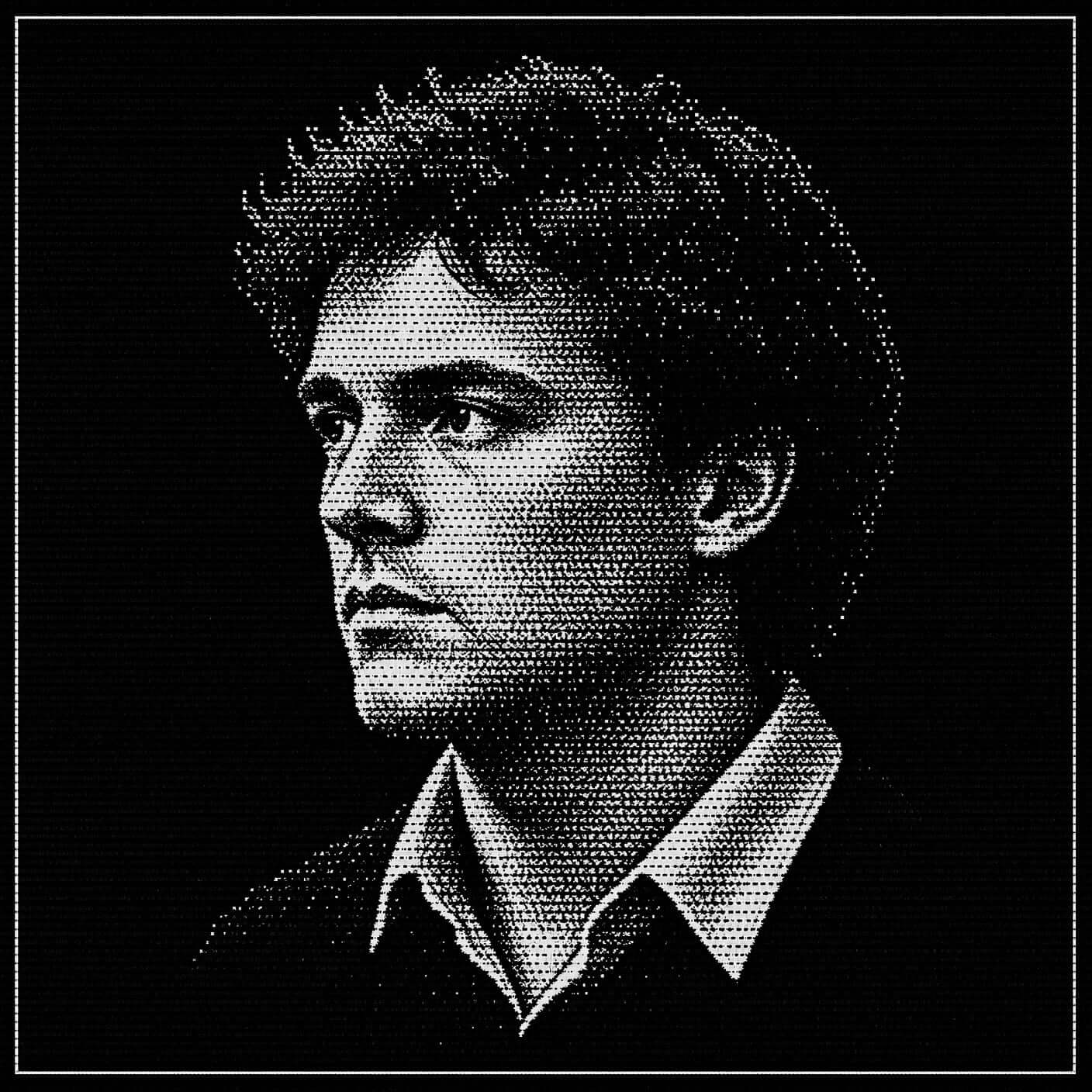
High-contrast halftone portrait of a young man rendered entirely in fine white dots on black
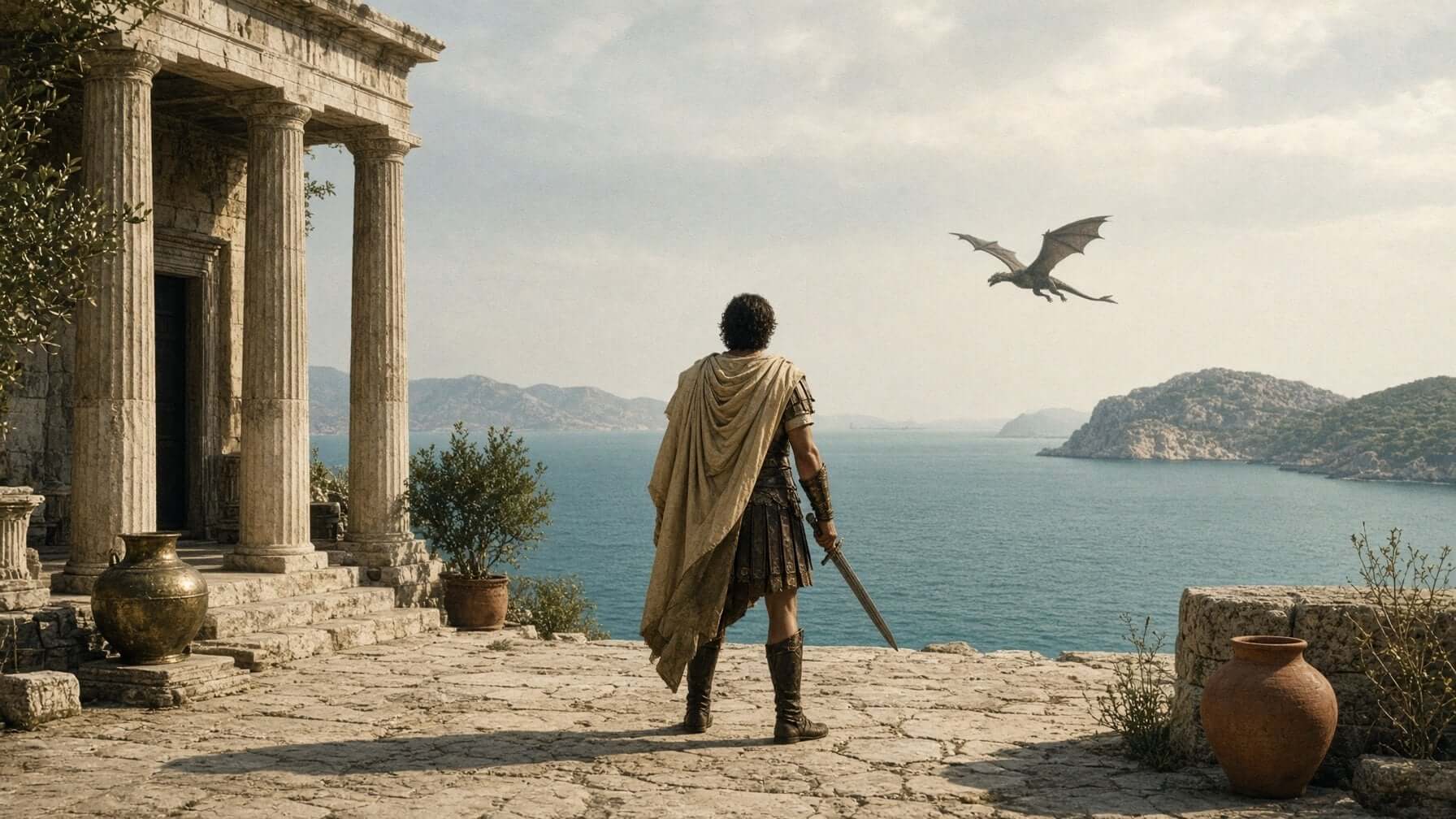
Caped swordsman on a clifftop temple terrace watching a dragon glide over an Aegean bay
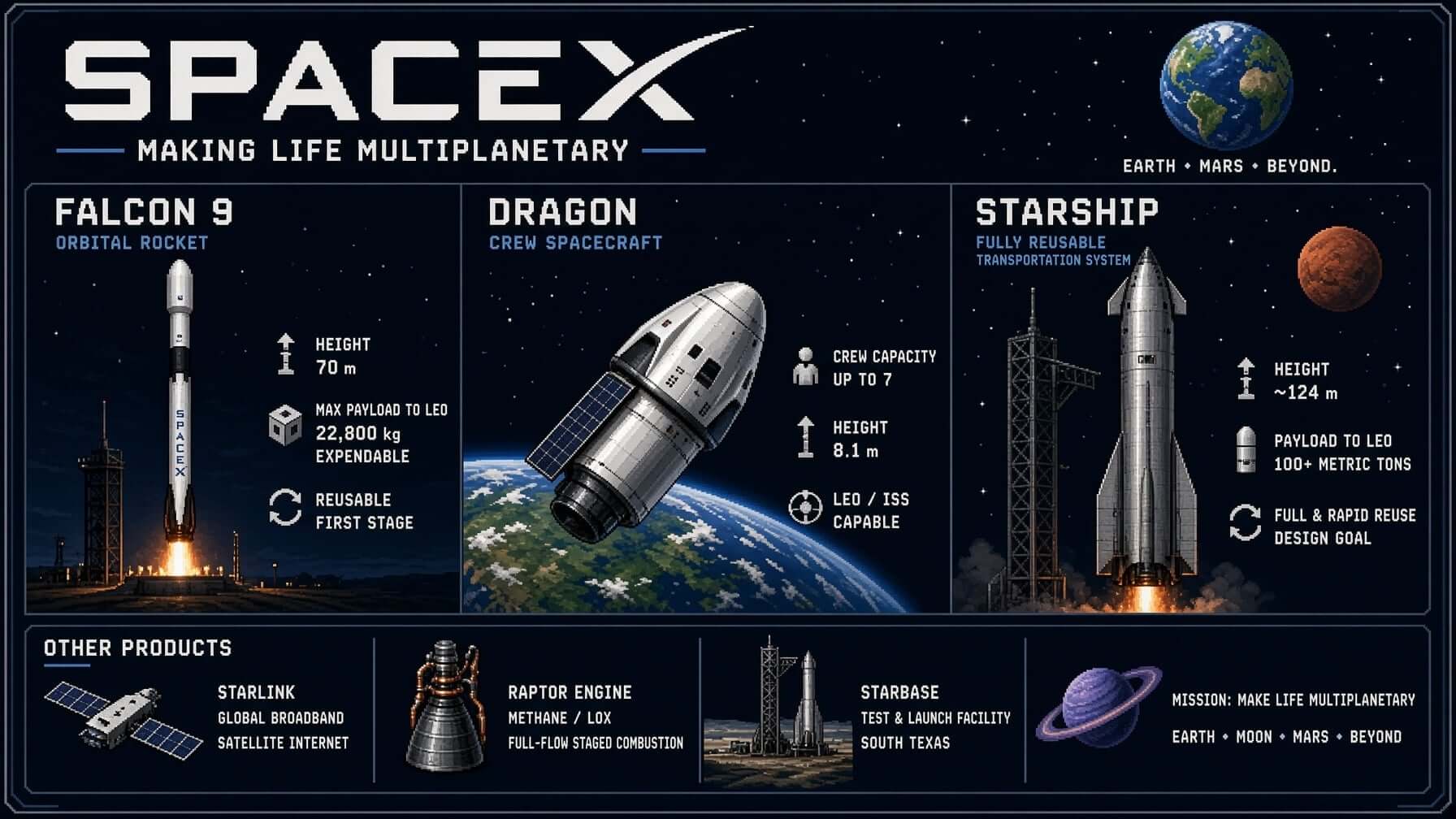
Pixel-art SpaceX infographic charting Falcon 9, Dragon, and Starship
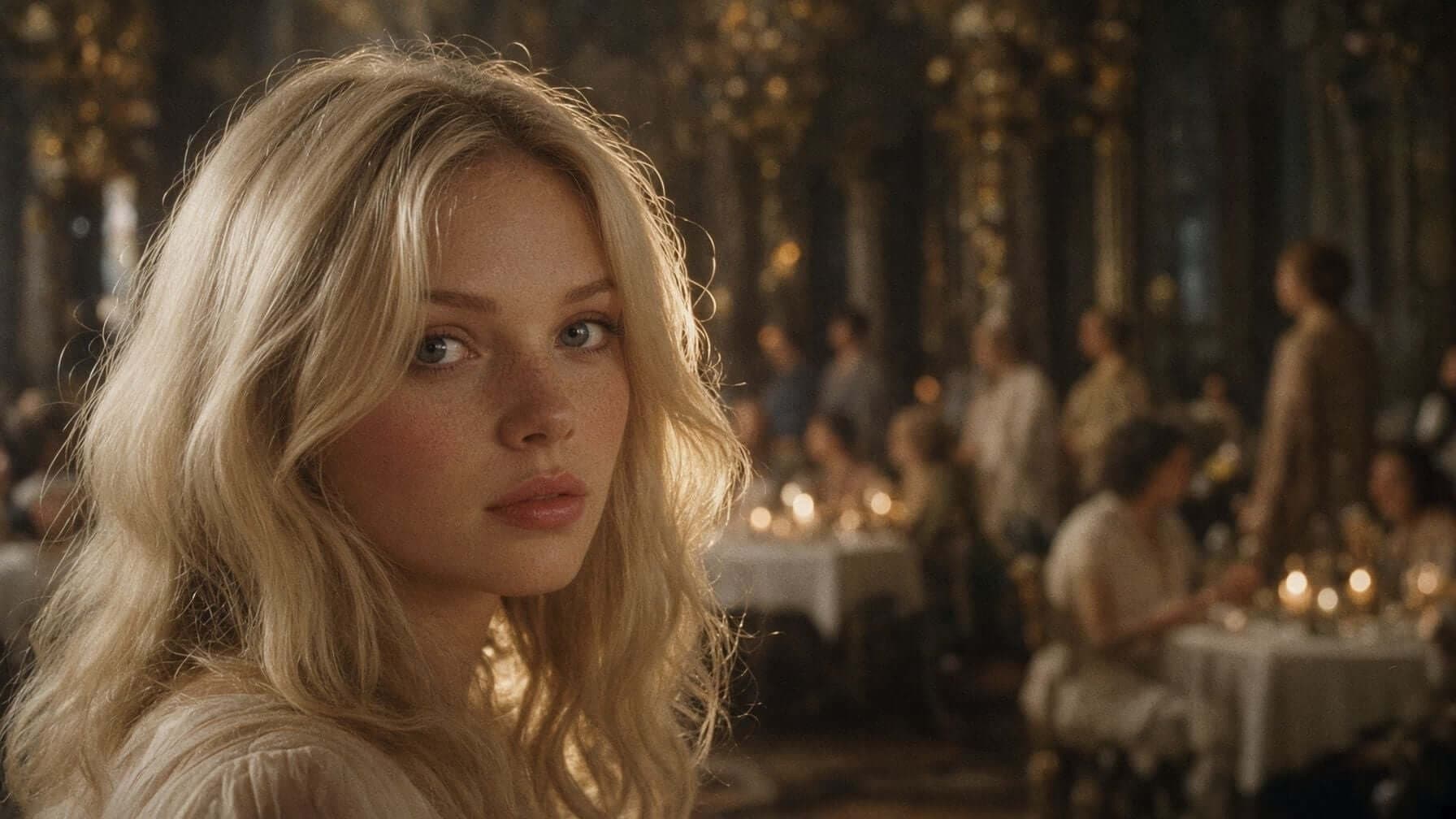
Cinematic close-up of a blonde woman glancing back across a candlelit ballroom
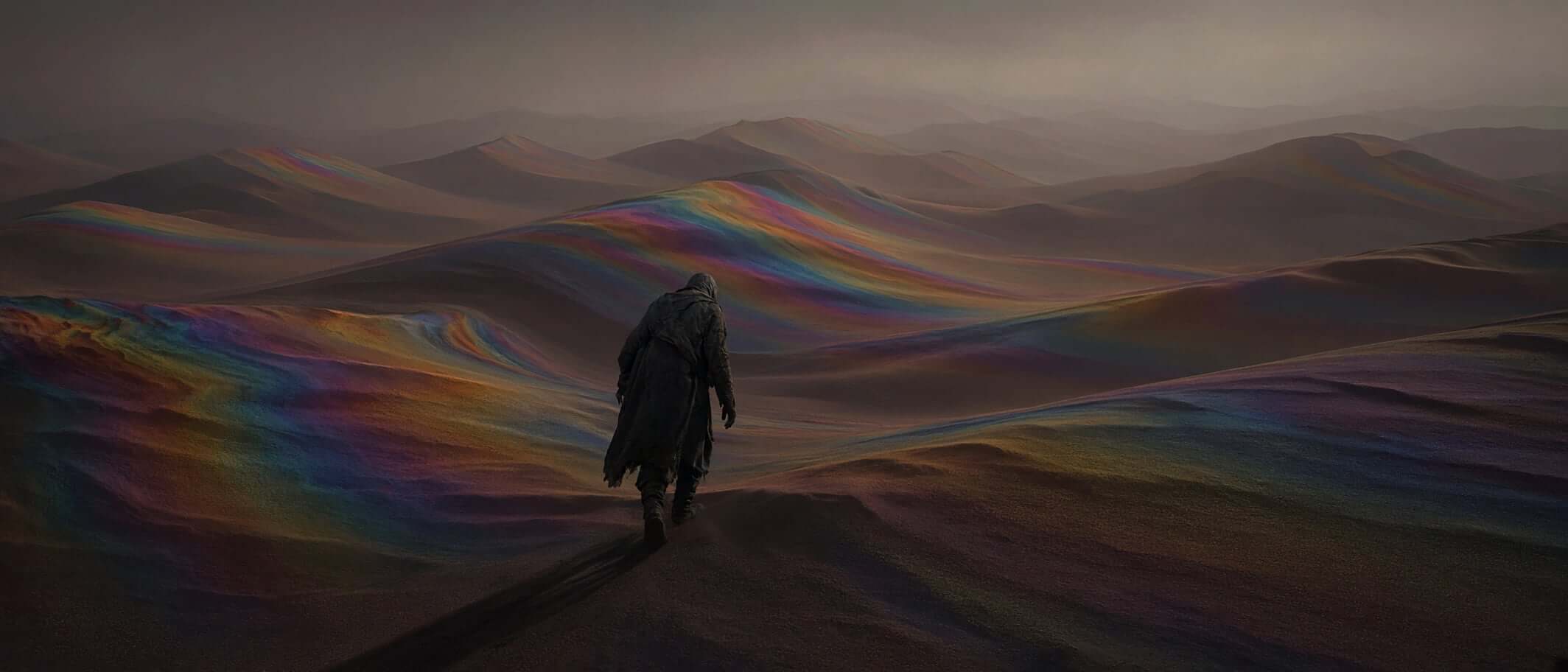
Cloaked figure crossing dunes streaked with iridescent color
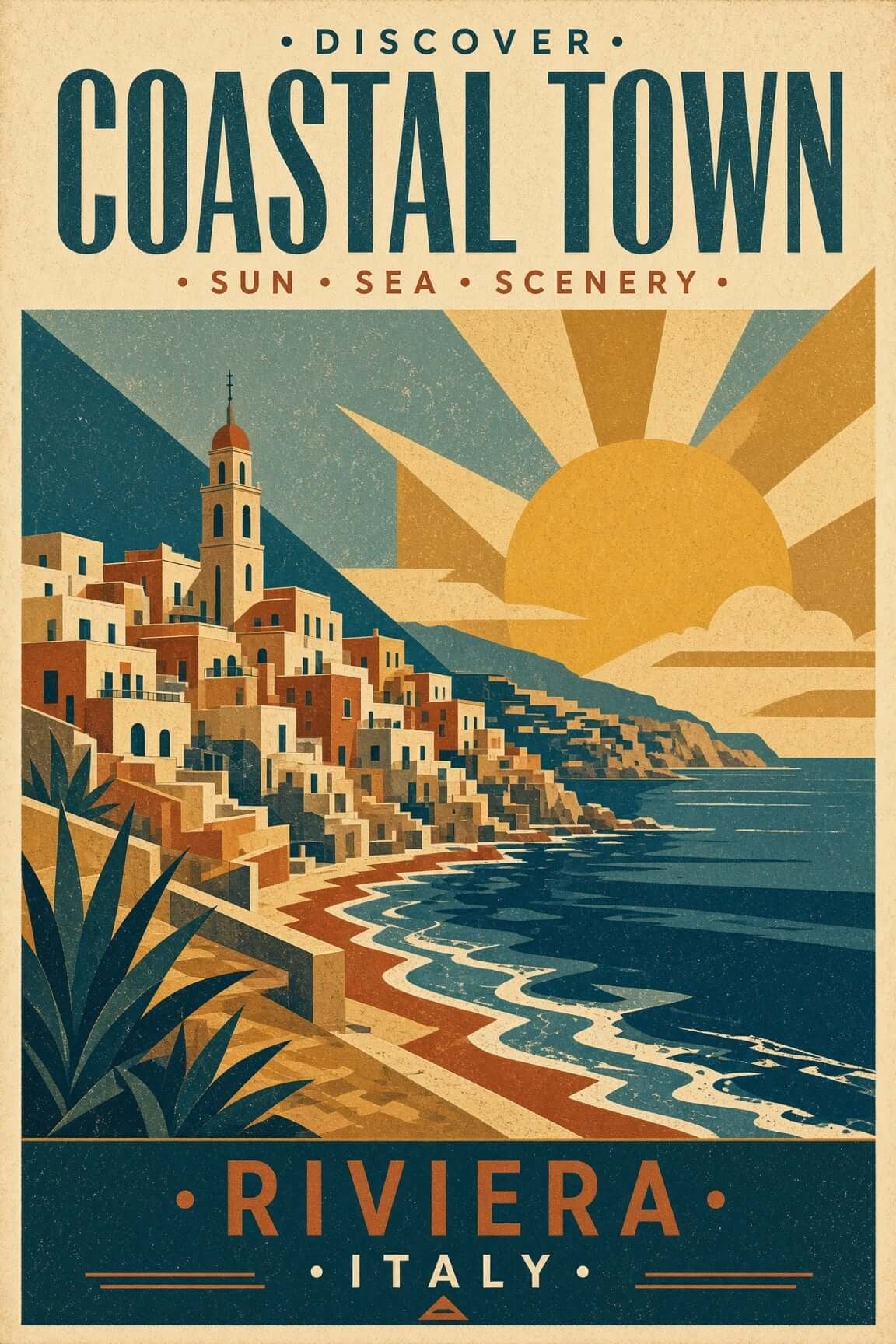
Vintage travel poster of an Italian Riviera coastal town
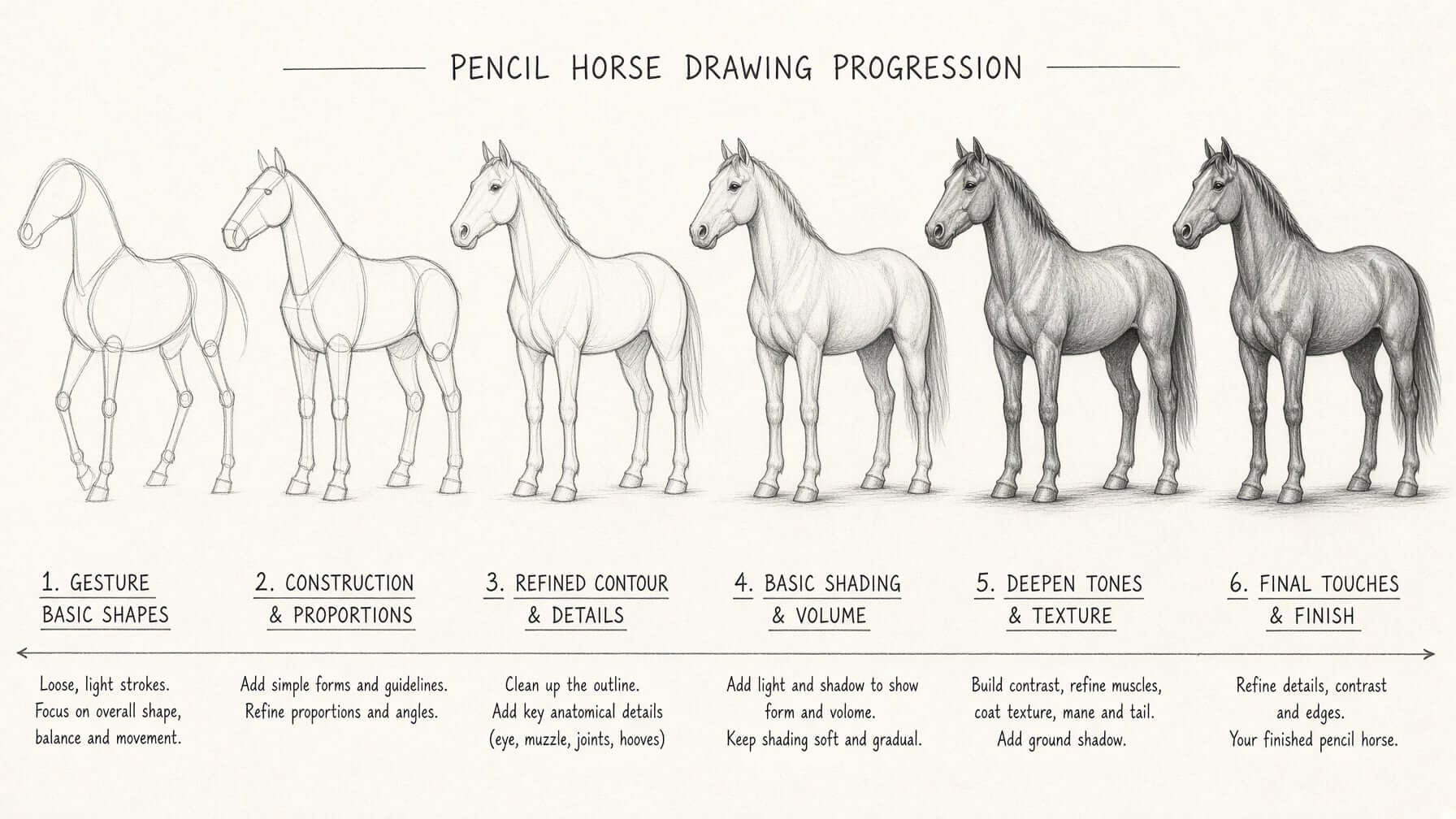
Step-by-step pencil horse drawing tutorial sheet
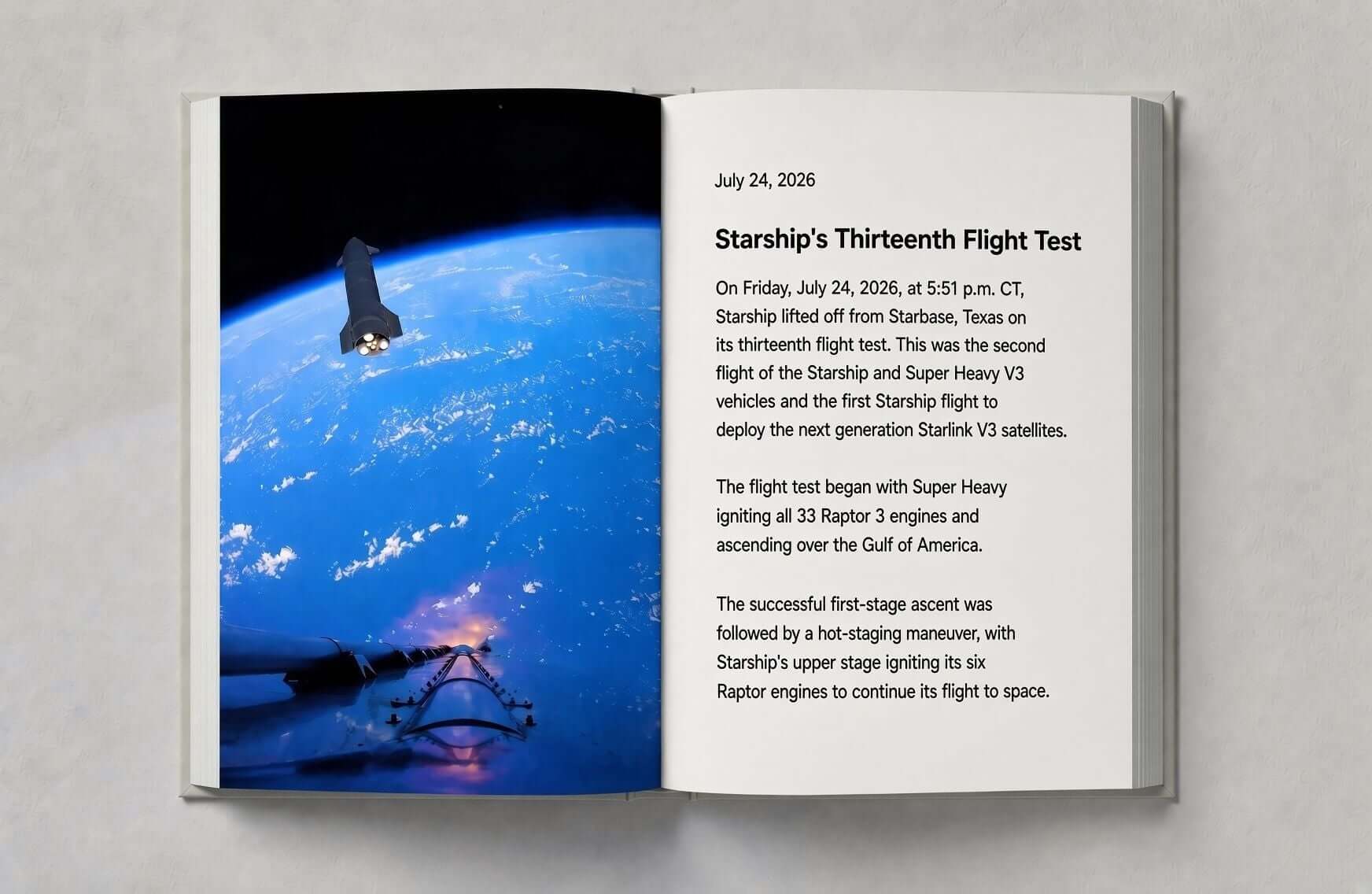
Open photo book spread on the thirteenth Starship flight test
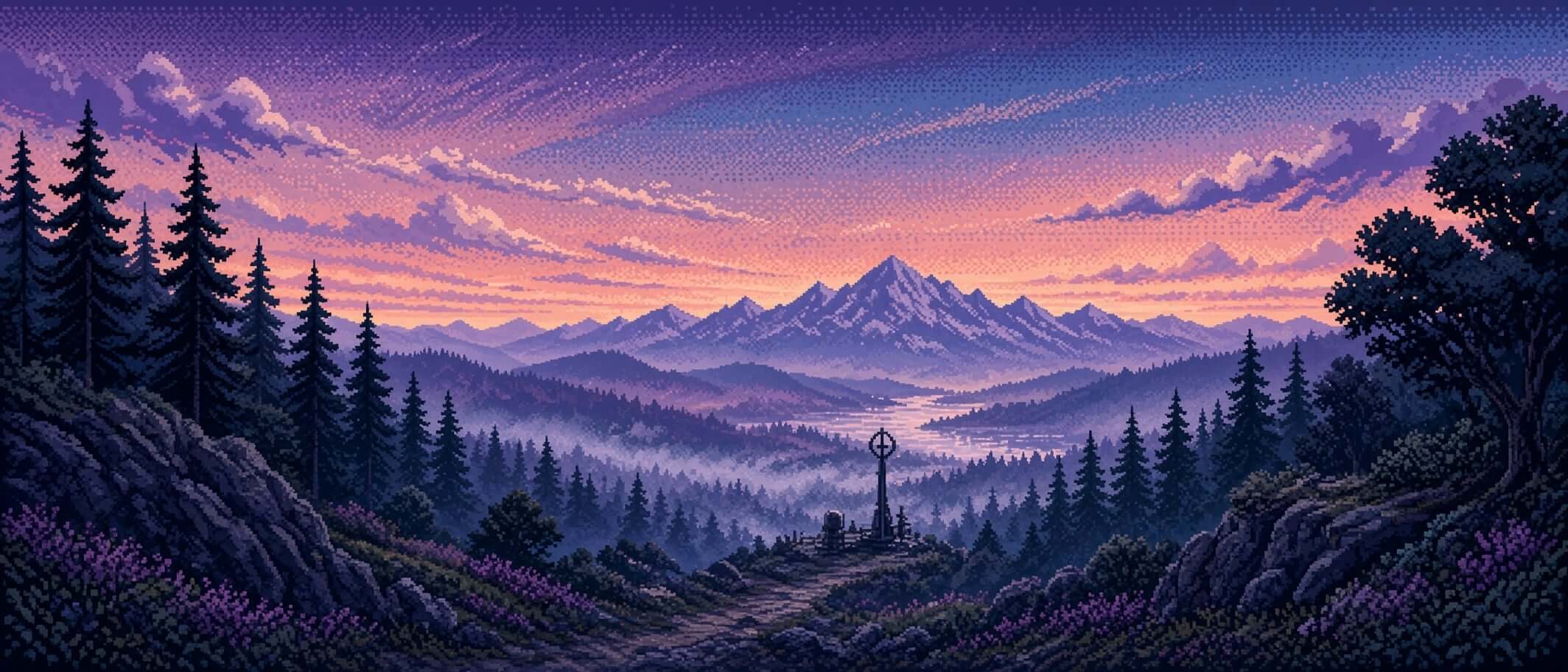
Pixel-art twilight valley with pine forests and a distant mountain
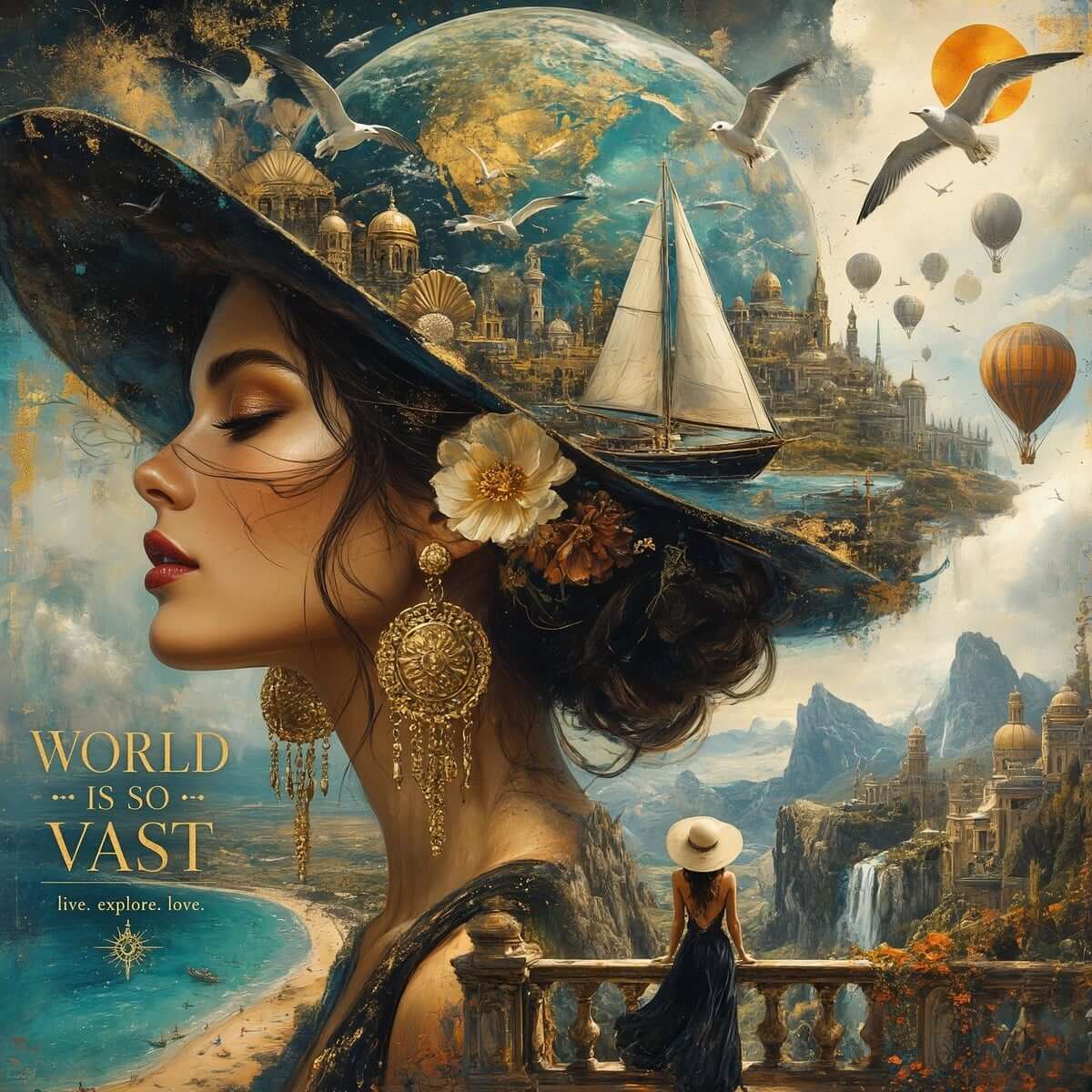
Surreal travel poster of a woman with a world of ships and cities in her hat
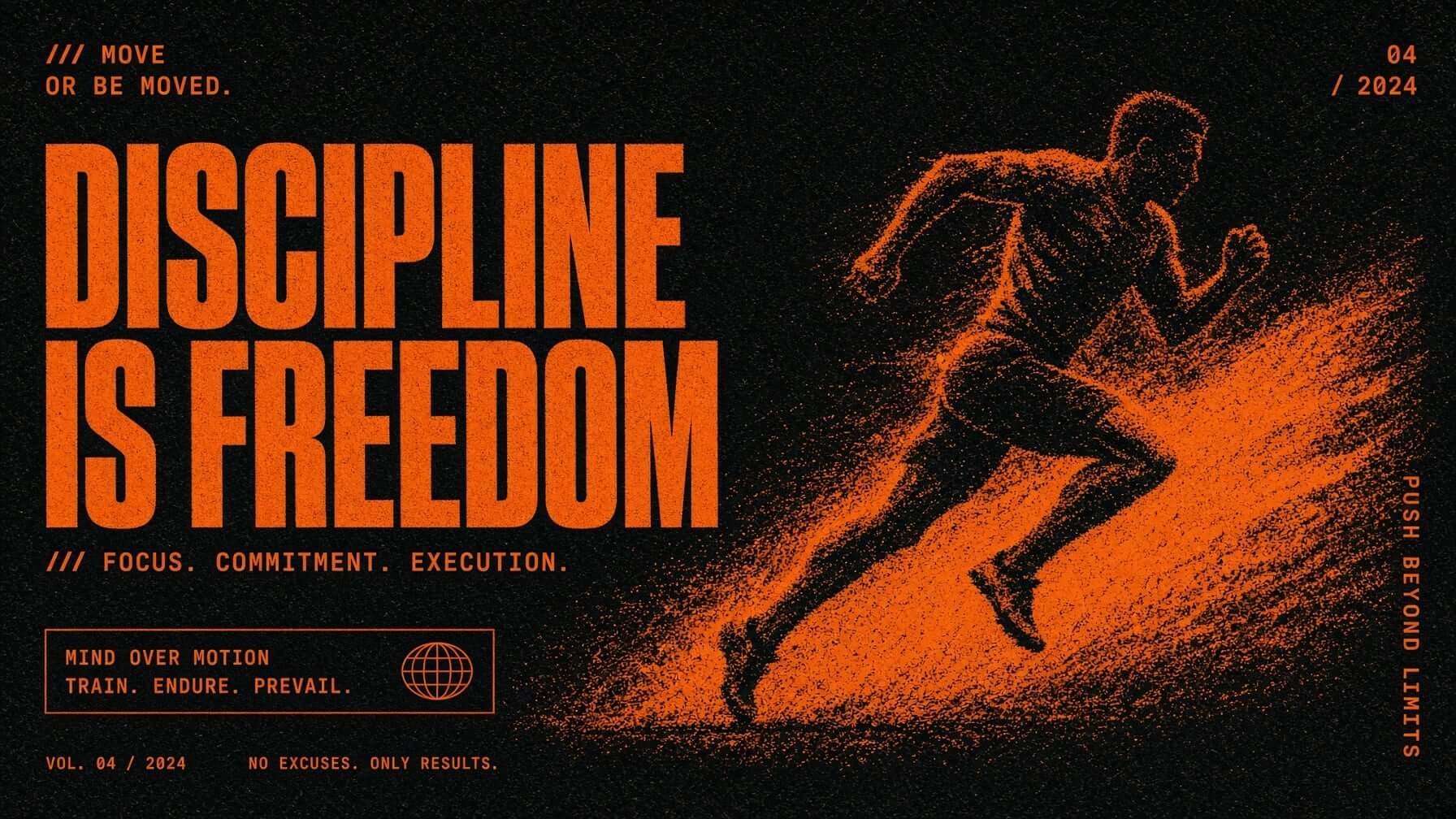
Gritty motivational poster of a sprinting runner in orange and black
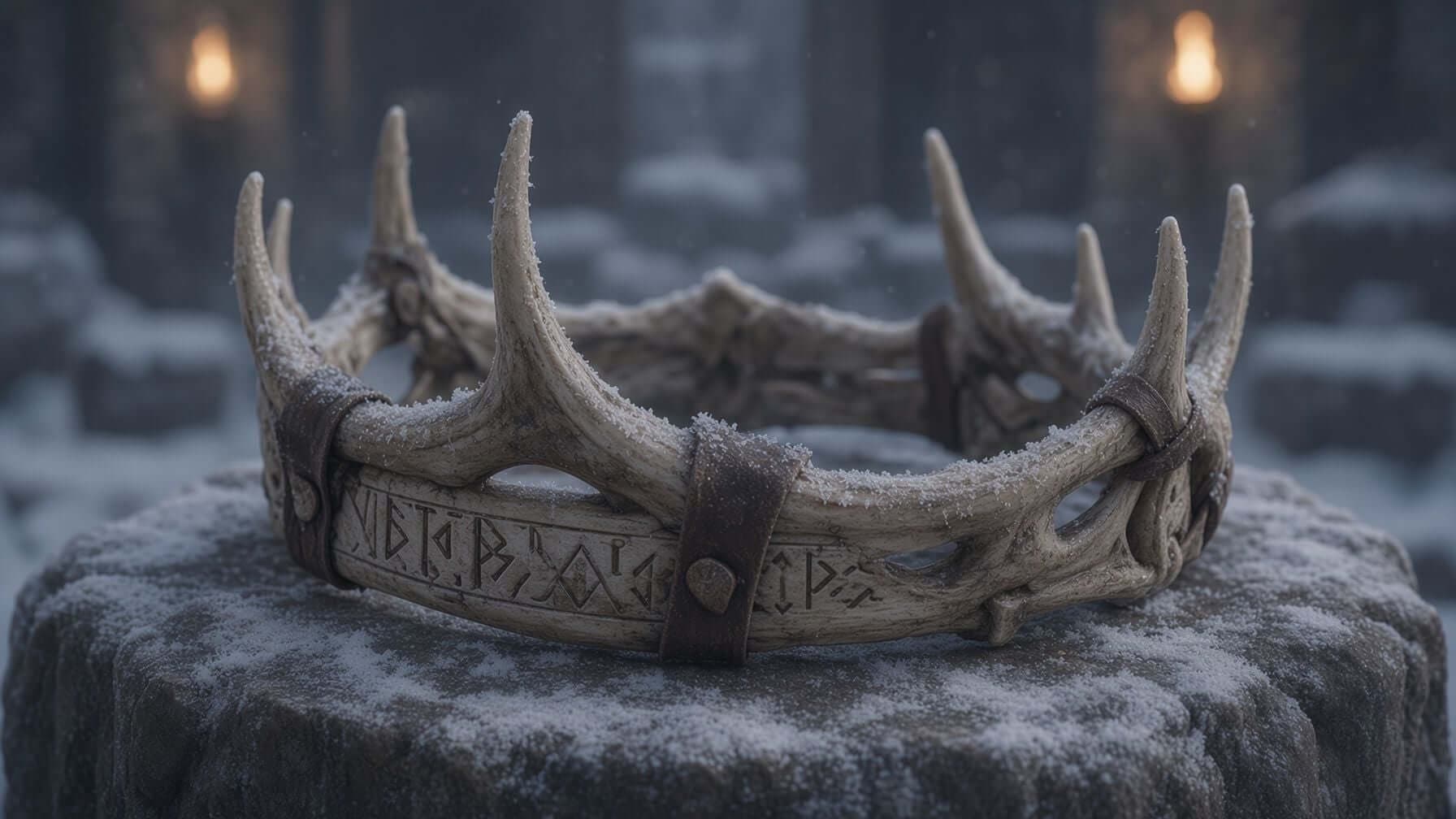
Rune-carved antler crown resting on a snow-dusted stone plinth
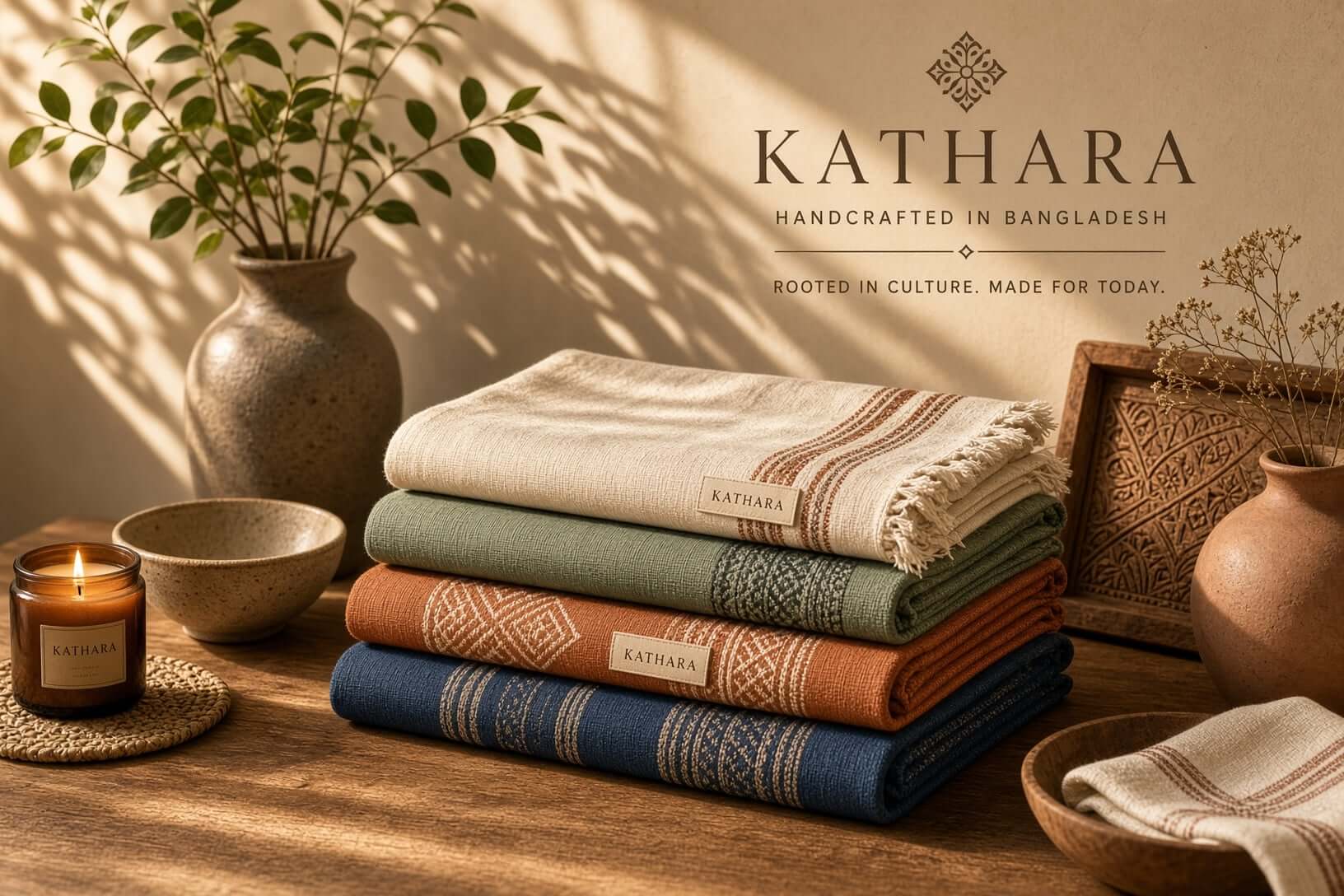
Product photo of handwoven textiles stacked on a wooden table
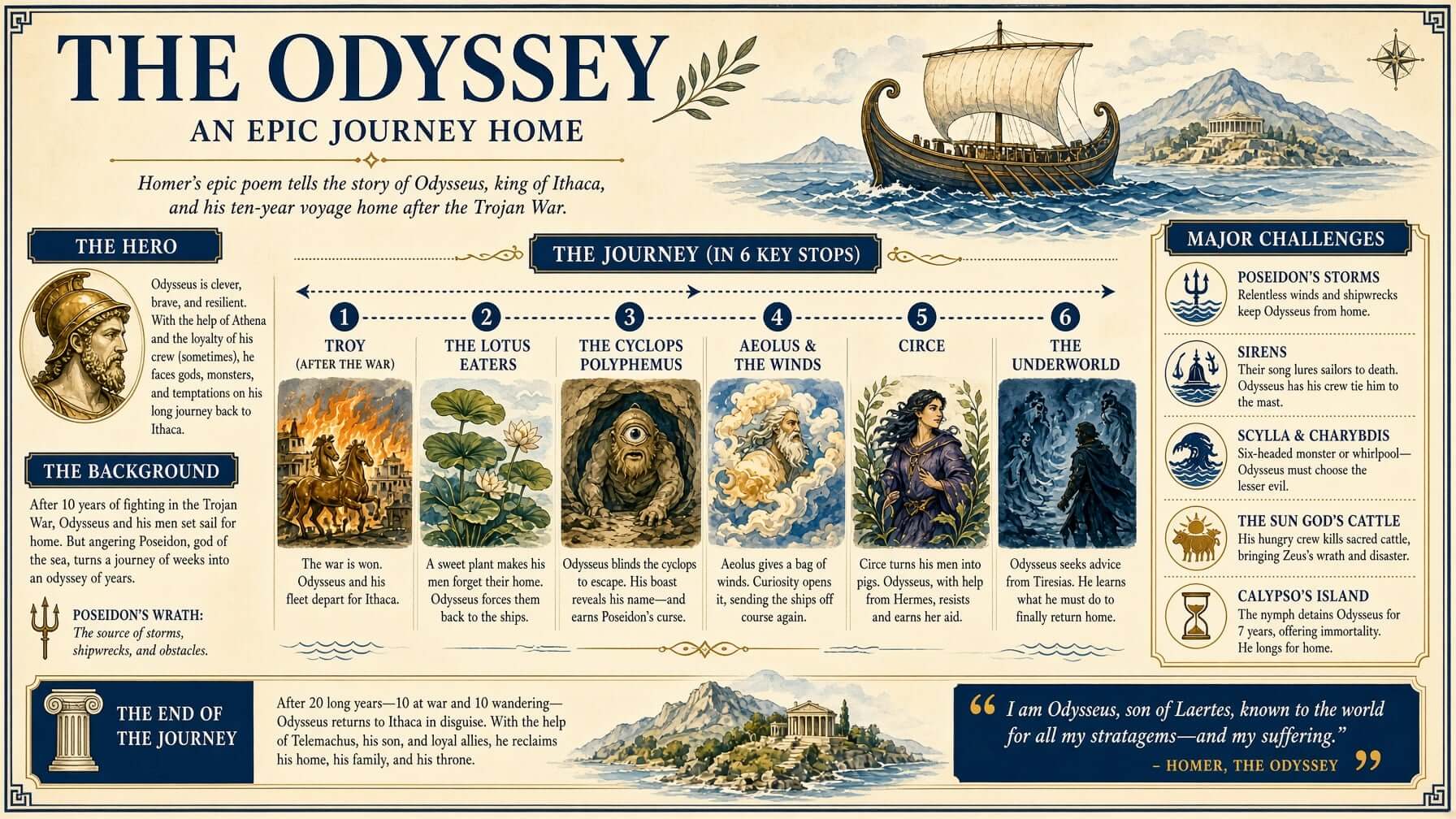
Illustrated Odyssey infographic mapping the voyage of Odysseus
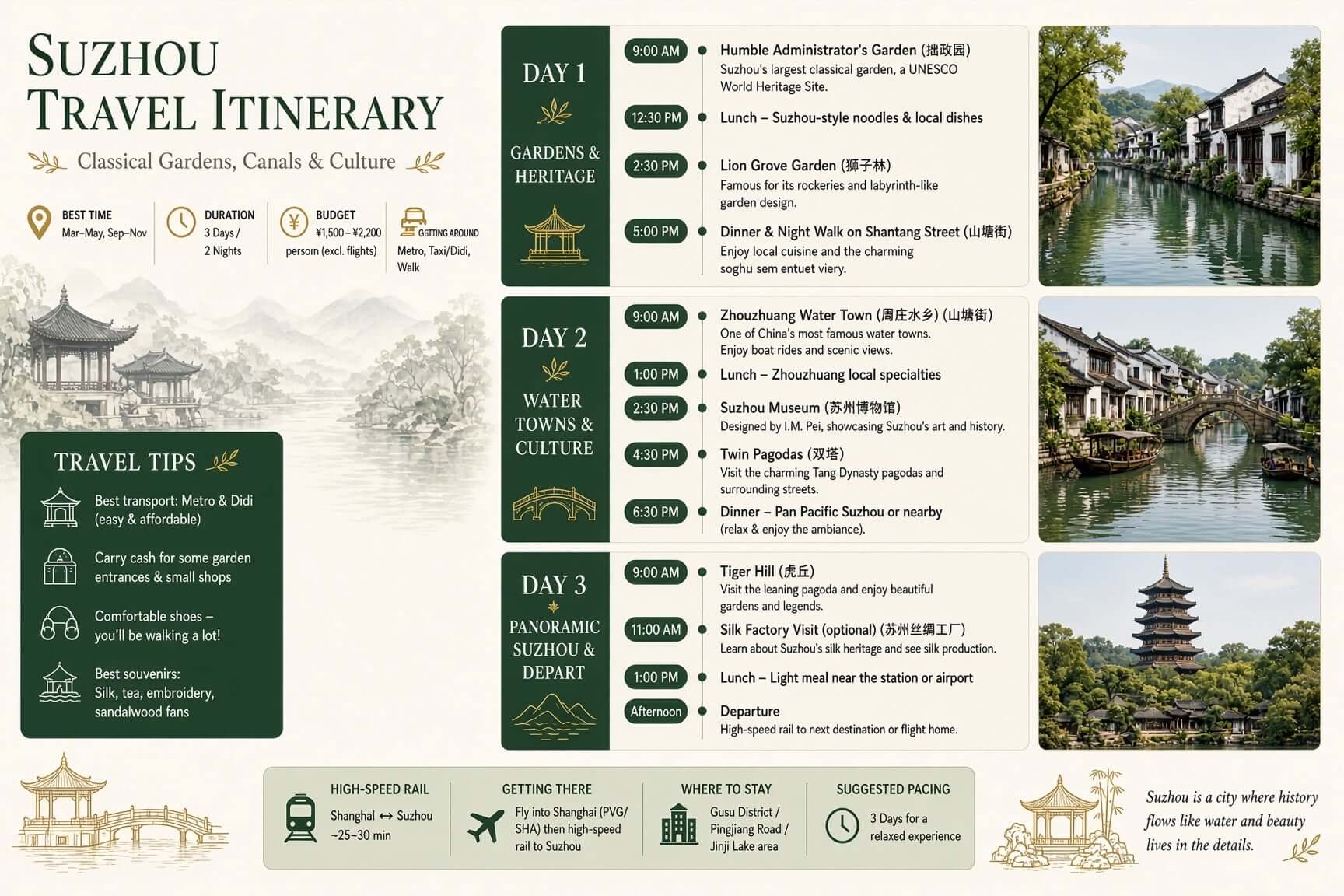
Illustrated Suzhou travel itinerary infographic with a three-day schedule
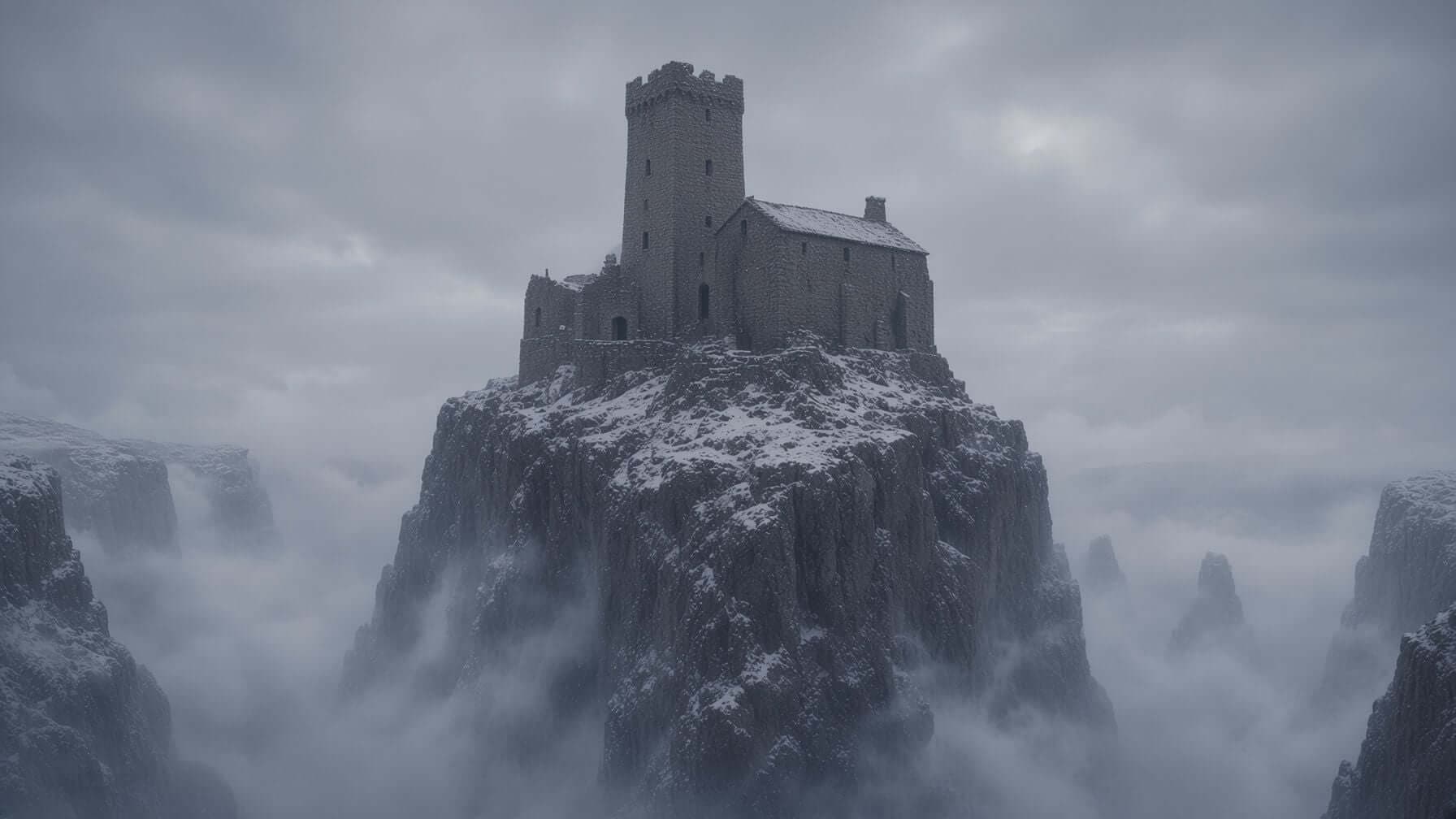
Fog-wrapped stone keep perched on a snowy clifftop spire
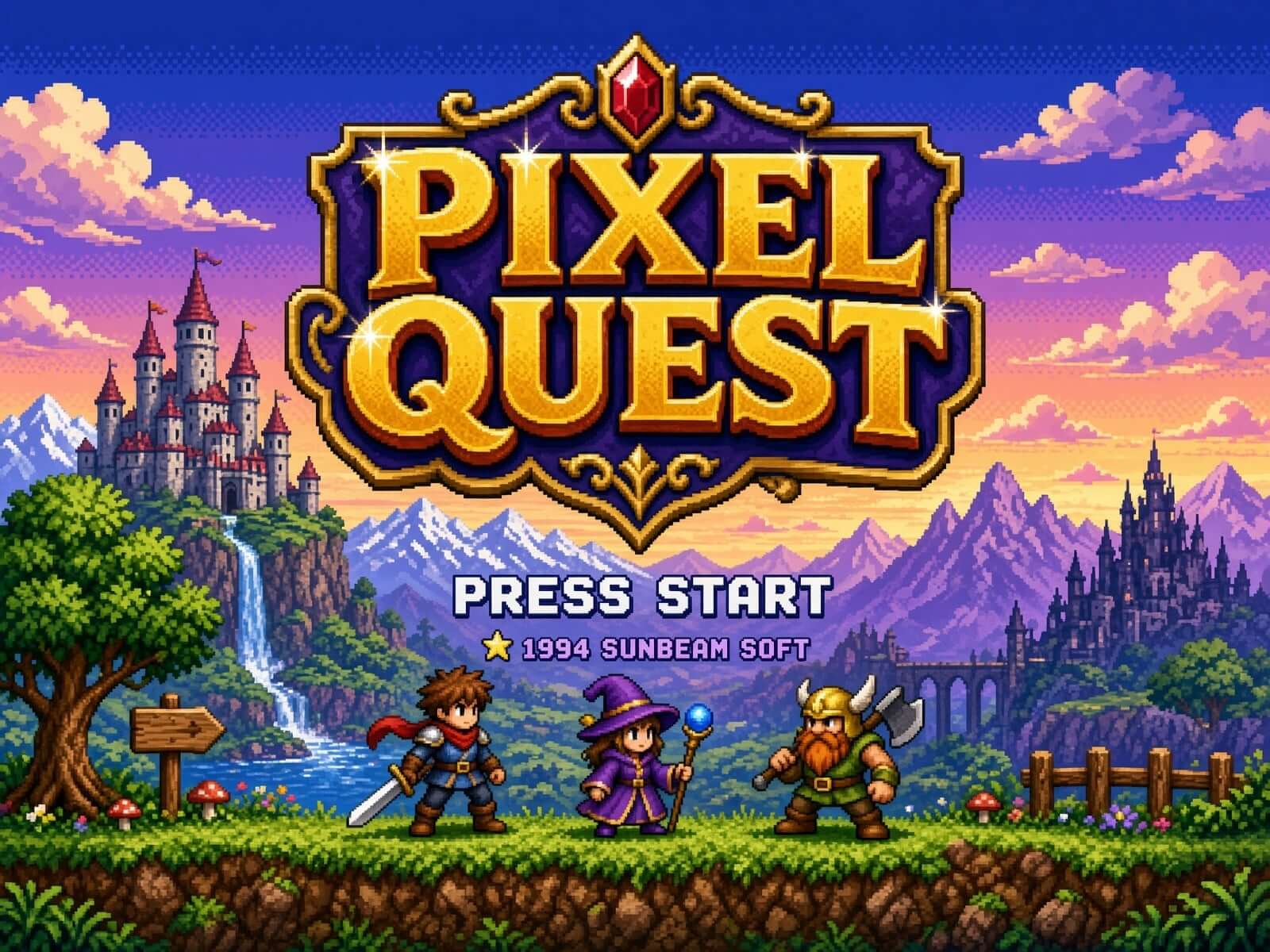
Retro pixel-art RPG title screen with a castle and adventurers
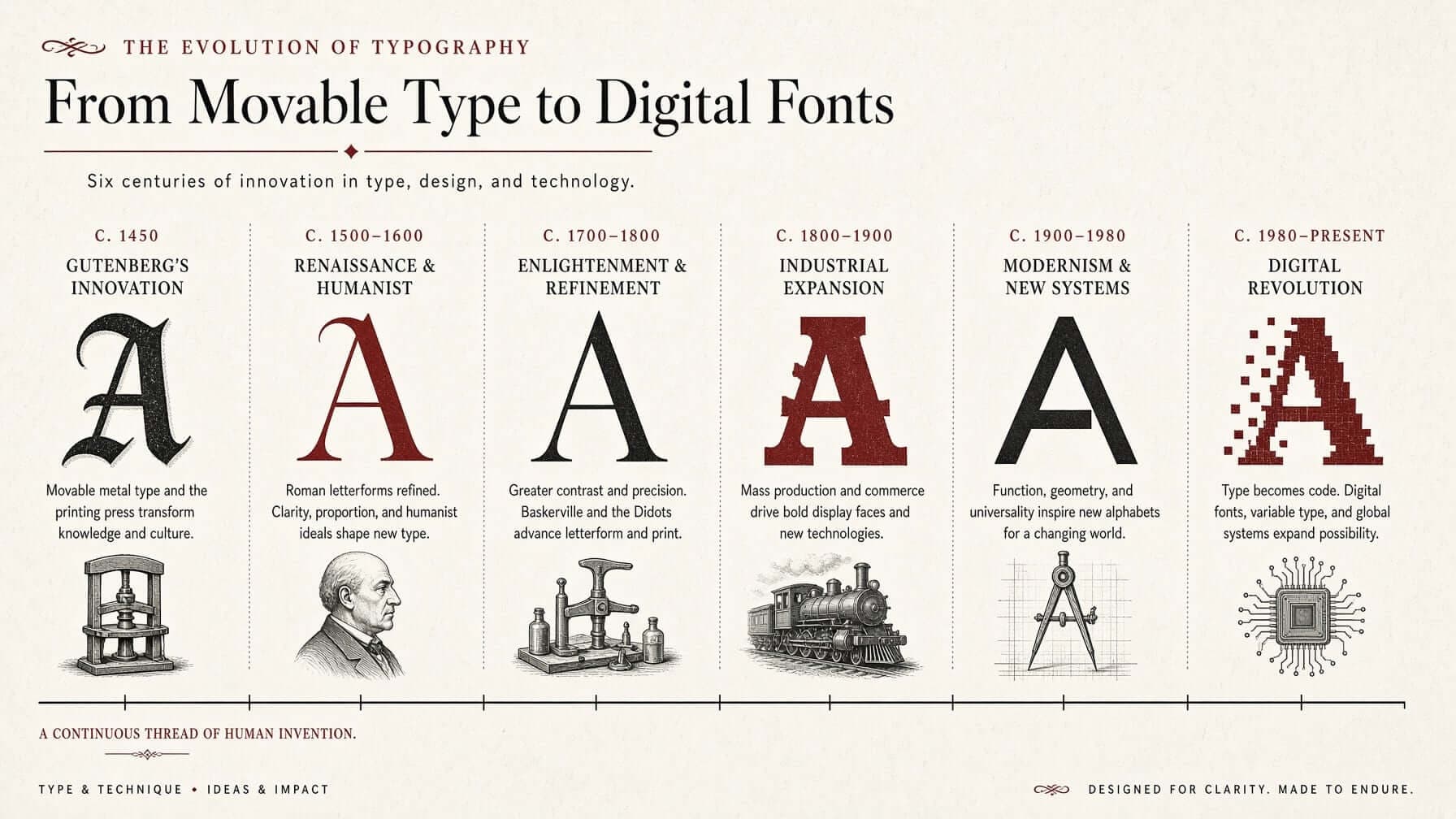
Typography-history infographic tracing letterforms from movable type to digital fonts
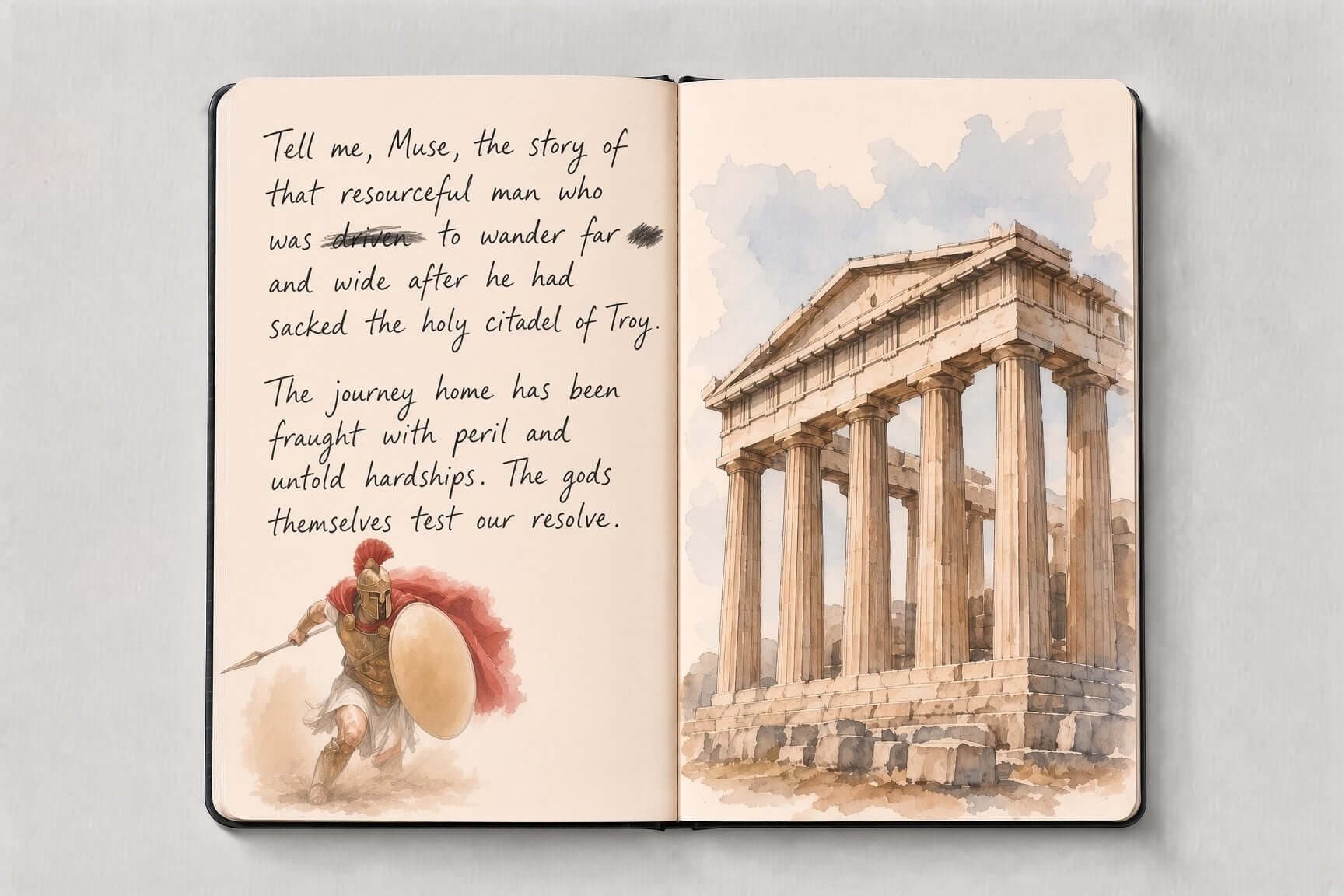
Handwritten Odyssey journal spread with a watercolor hoplite facing a painted Greek temple
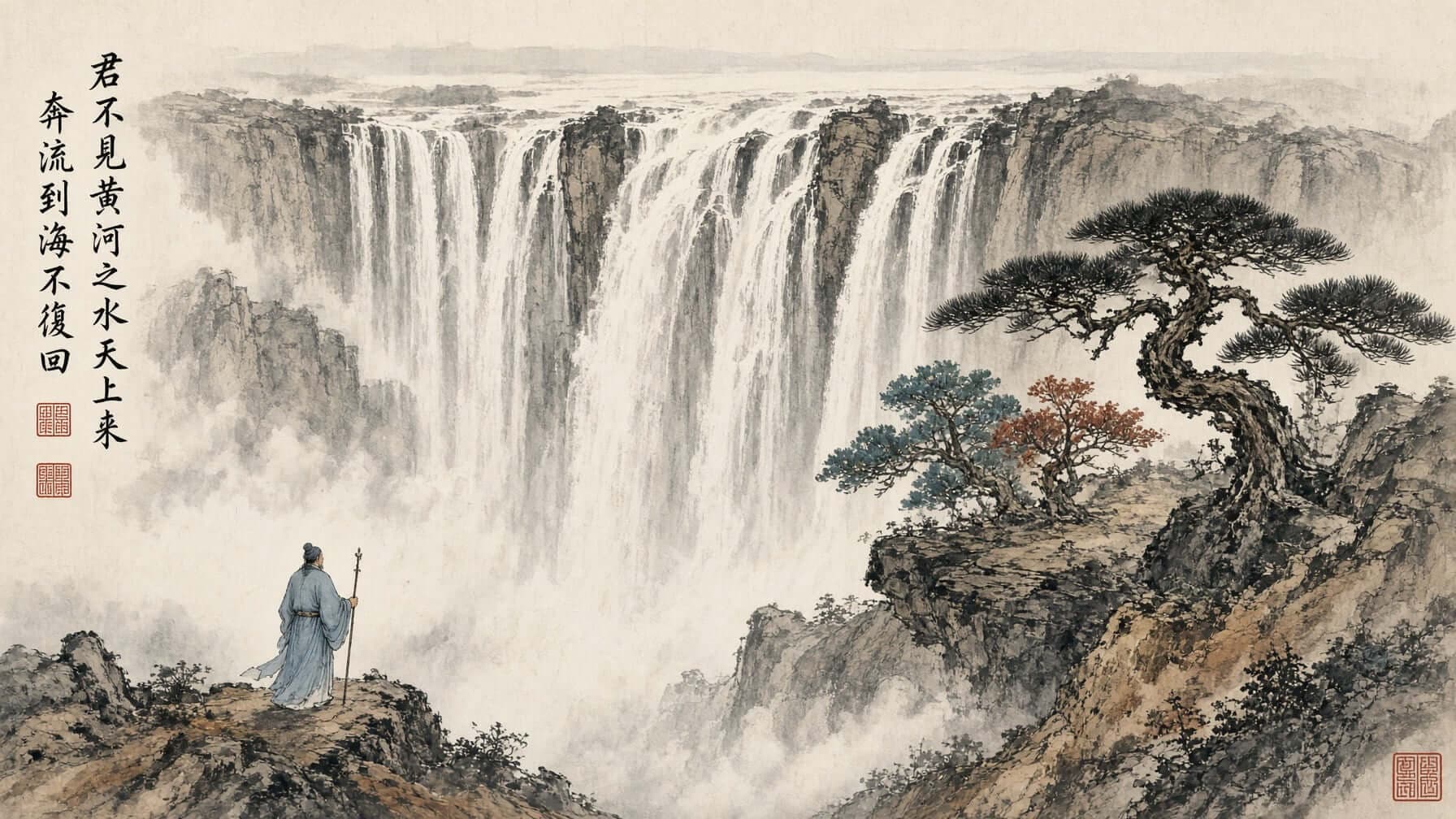
Classical Chinese ink painting of a waterfall with a robed figure
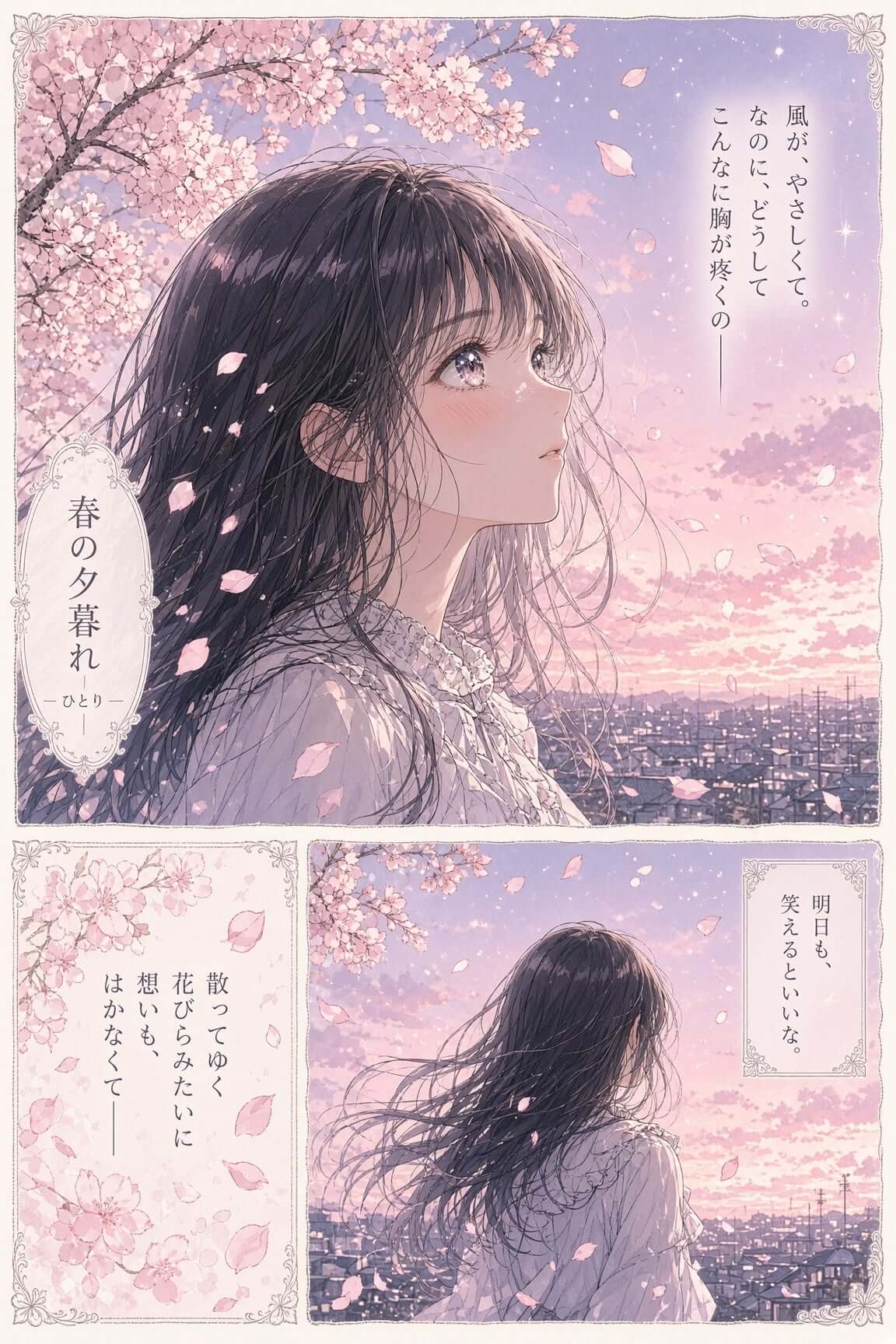
Soft anime manga page of a girl among drifting cherry blossoms at dusk

Overview

What Is Grok Image 2.0?

Grok Image 2.0, often searched for as Grok Imagine Image 2.0, is an AI image creation and editing experience that turns text prompts and reference images into new visuals. You describe the result you want, review the output, and continue refining it with plain-language instructions.

You can ask Grok Image 2.0 to change an object, adjust the lighting, apply a new visual style, or build a fresh composition from several references. Choose an aspect ratio that fits the intended placement, request multiple images when you need options, and produce images at up to 2K resolution.
Creative control

Features for faster visual iteration

Grok Image 2.0 brings image generation and image editing into the same workflow. Each feature helps you move from an idea to a more specific, usable asset without starting over after every change.

Generate images from text prompts

Write what should appear in the frame, including the subject, setting, lighting, composition, and mood. Strong prompts name the main subject first, then add environment, camera view, palette, materials, and intended use.

Edit images with natural language

Start with an existing image and describe the change you want. Restyle the source, add or modify details, and create a revised version with one focused instruction at a time.

Refine an image across multiple turns

Use the output of one edit as the input for the next. Establish the scene, adjust details, then refine the final style so each decision is easier to evaluate.

Combine multiple reference images

Provide two or more source images when a single reference does not contain everything you need. State which source defines the subject, setting, or style.

Explore styles without rebuilding the scene

Restyle an image with a descriptive prompt, from realistic photography to anime, oil painting, pencil sketch, pop art, and watercolor, while keeping the core idea intact.

Control format, resolution, and output count

Choose an aspect ratio and resolution that match the destination, with output up to 2K. Request multiple images when comparing creative directions.

Examples

See Grok Image 2.0 examples

Photo Edit template cover
Product Color Change template cover
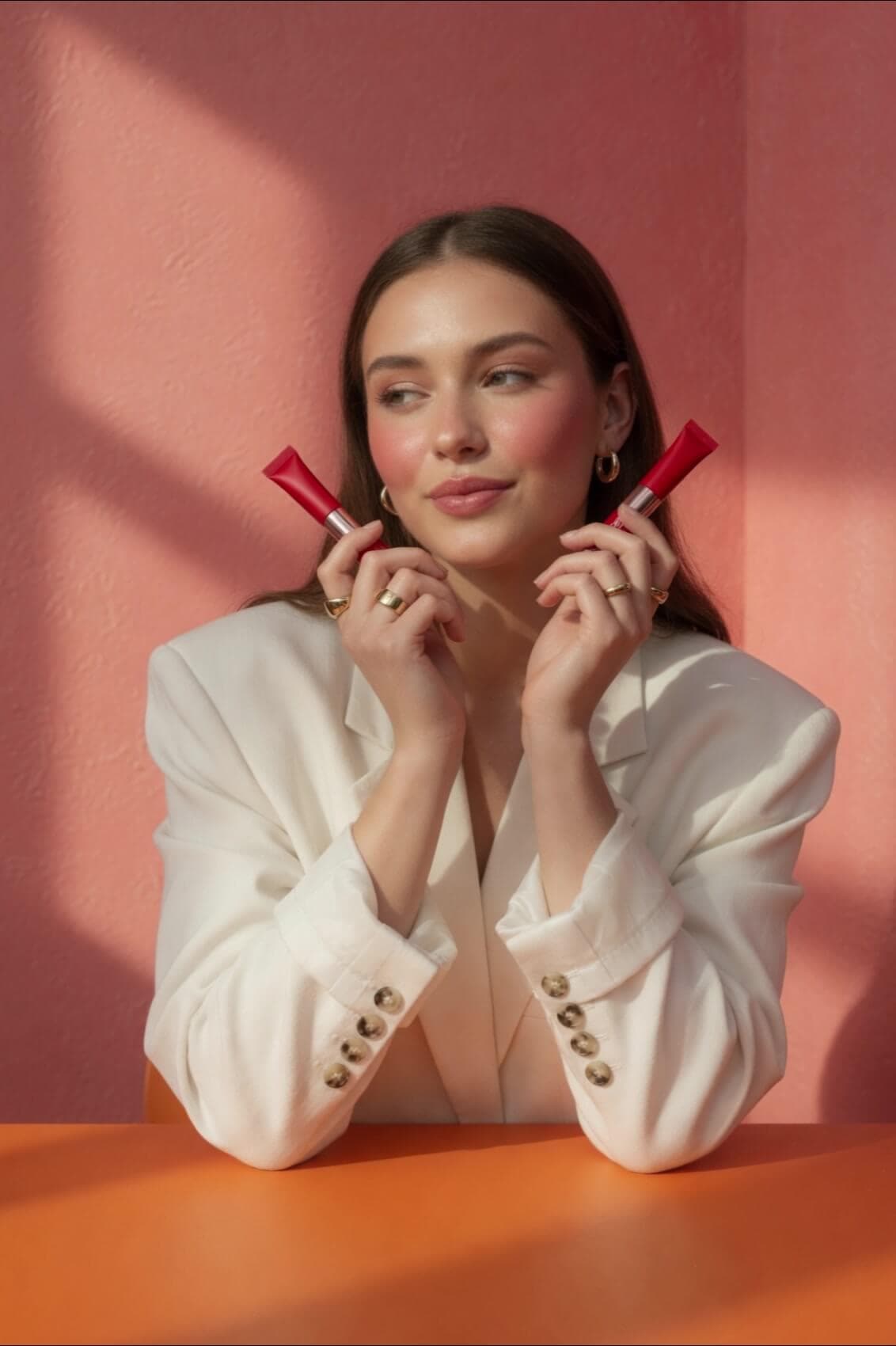
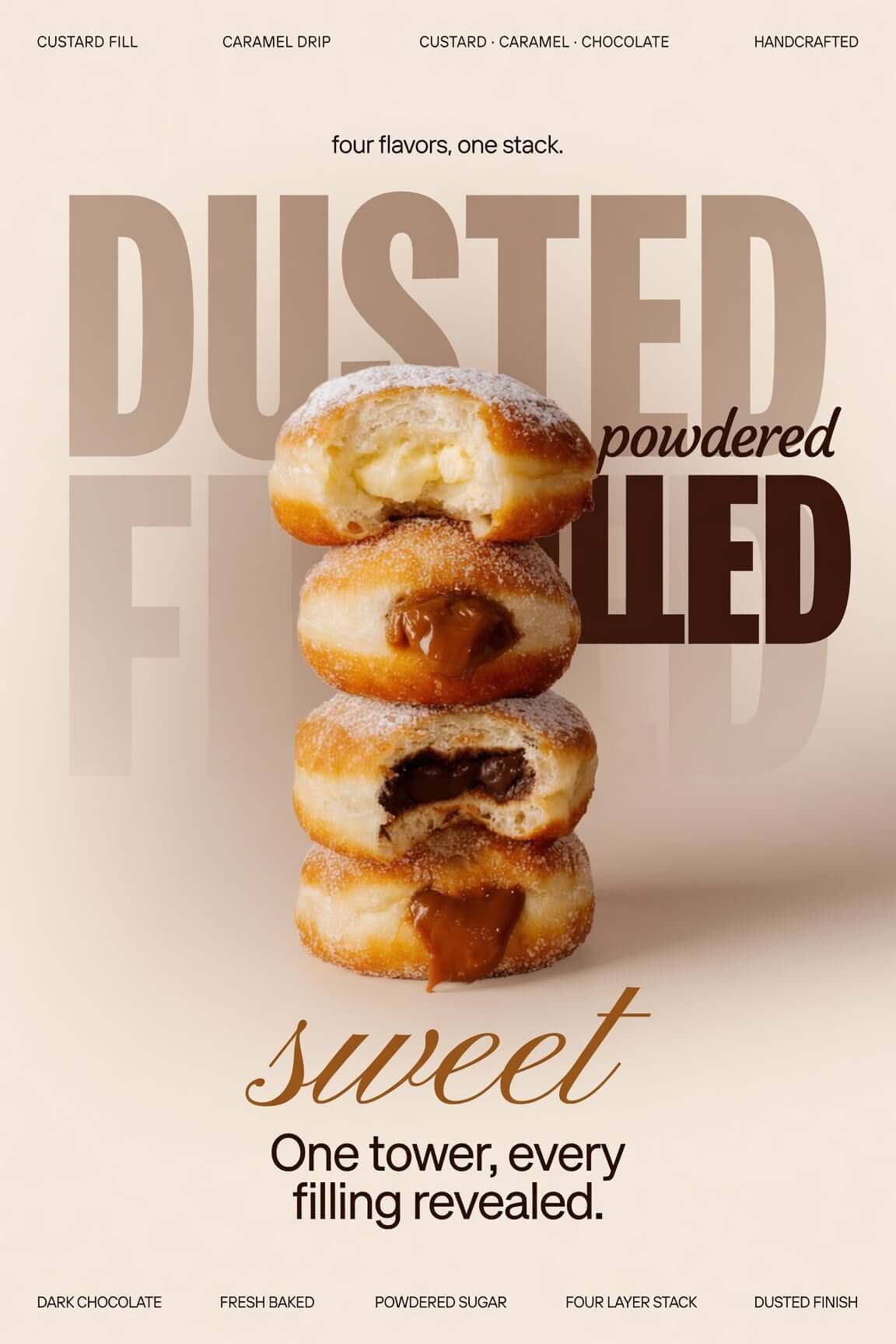
Editorial Product Poster template cover
Reimagine template cover
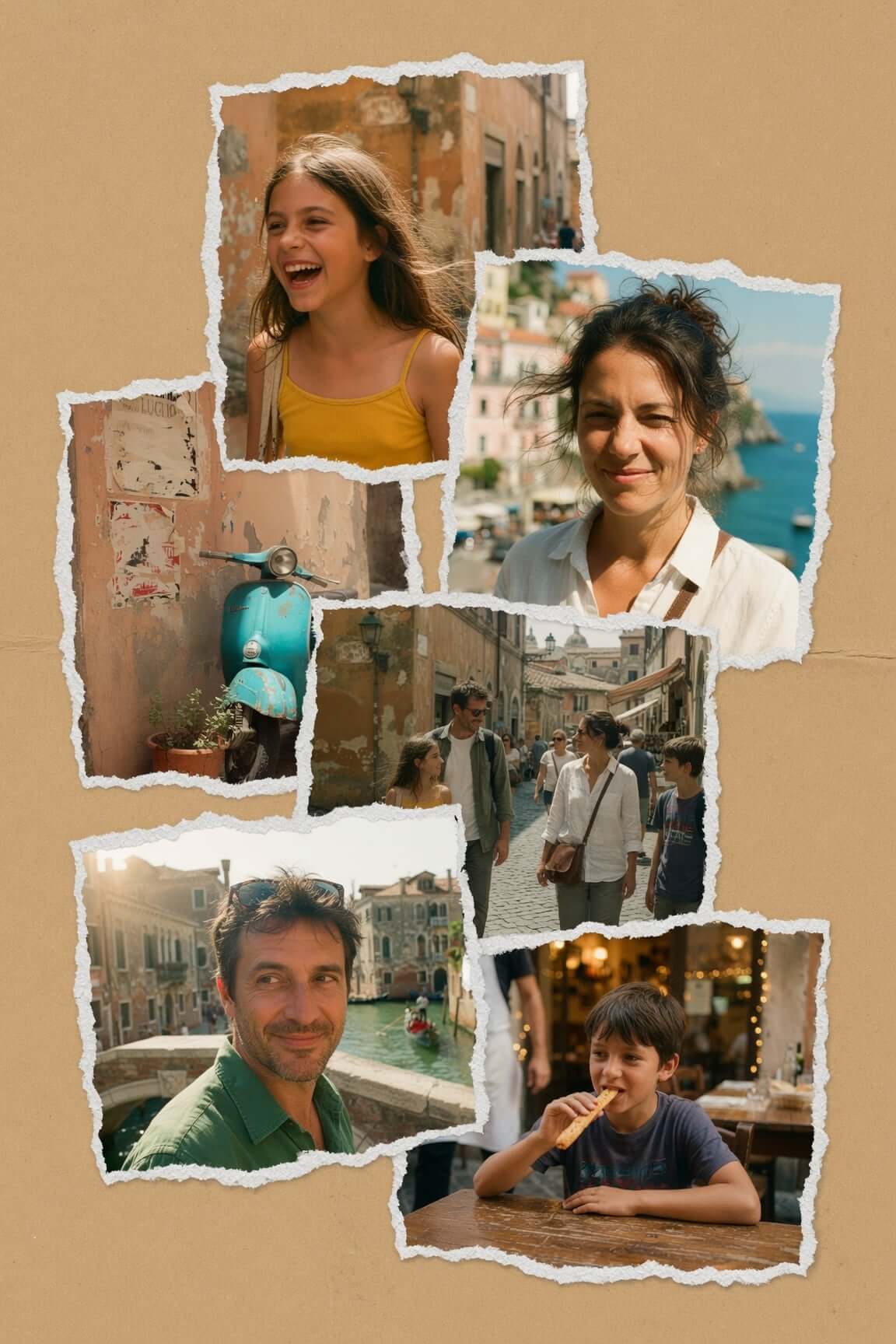
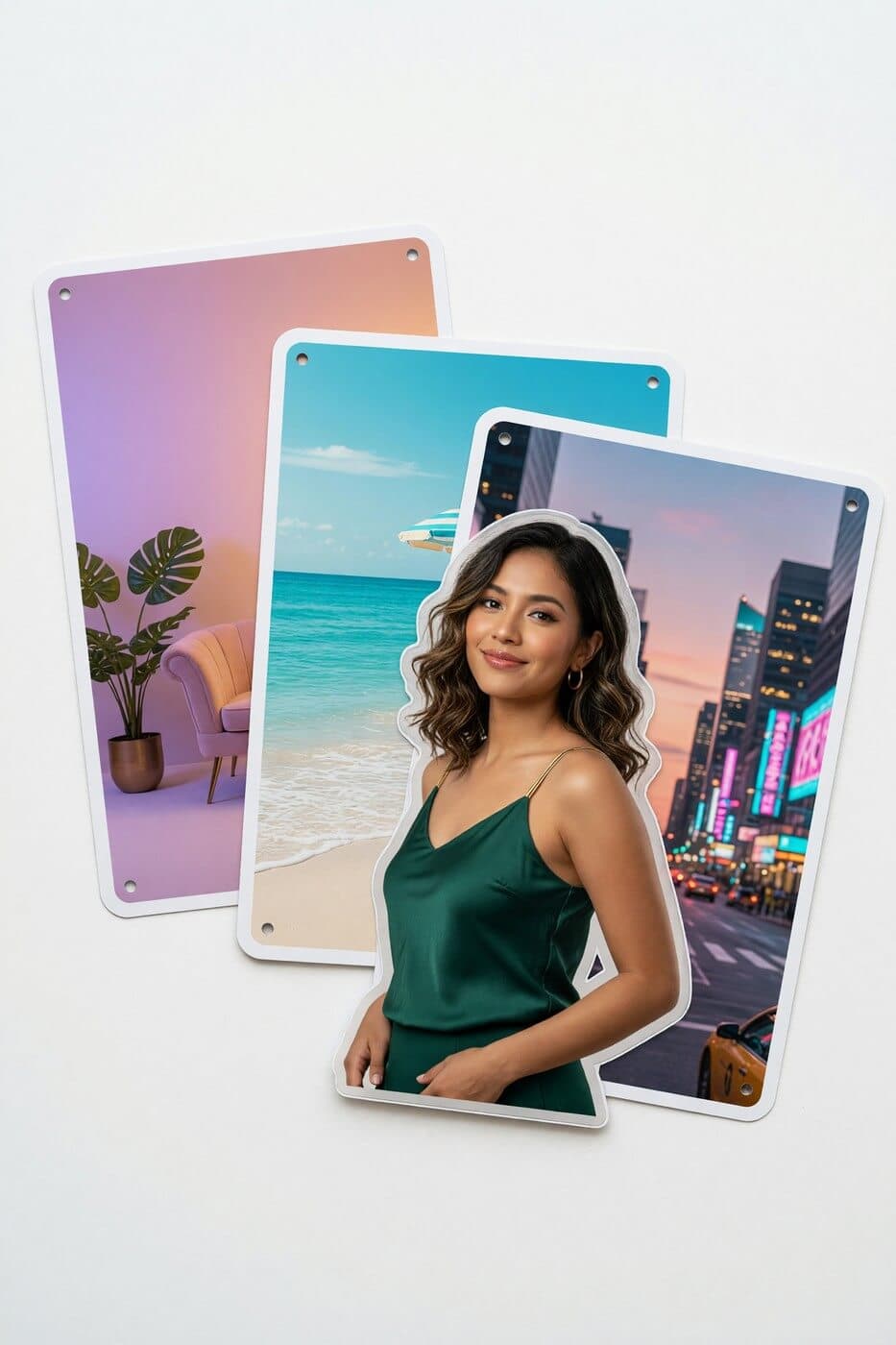
Photo Collage template cover
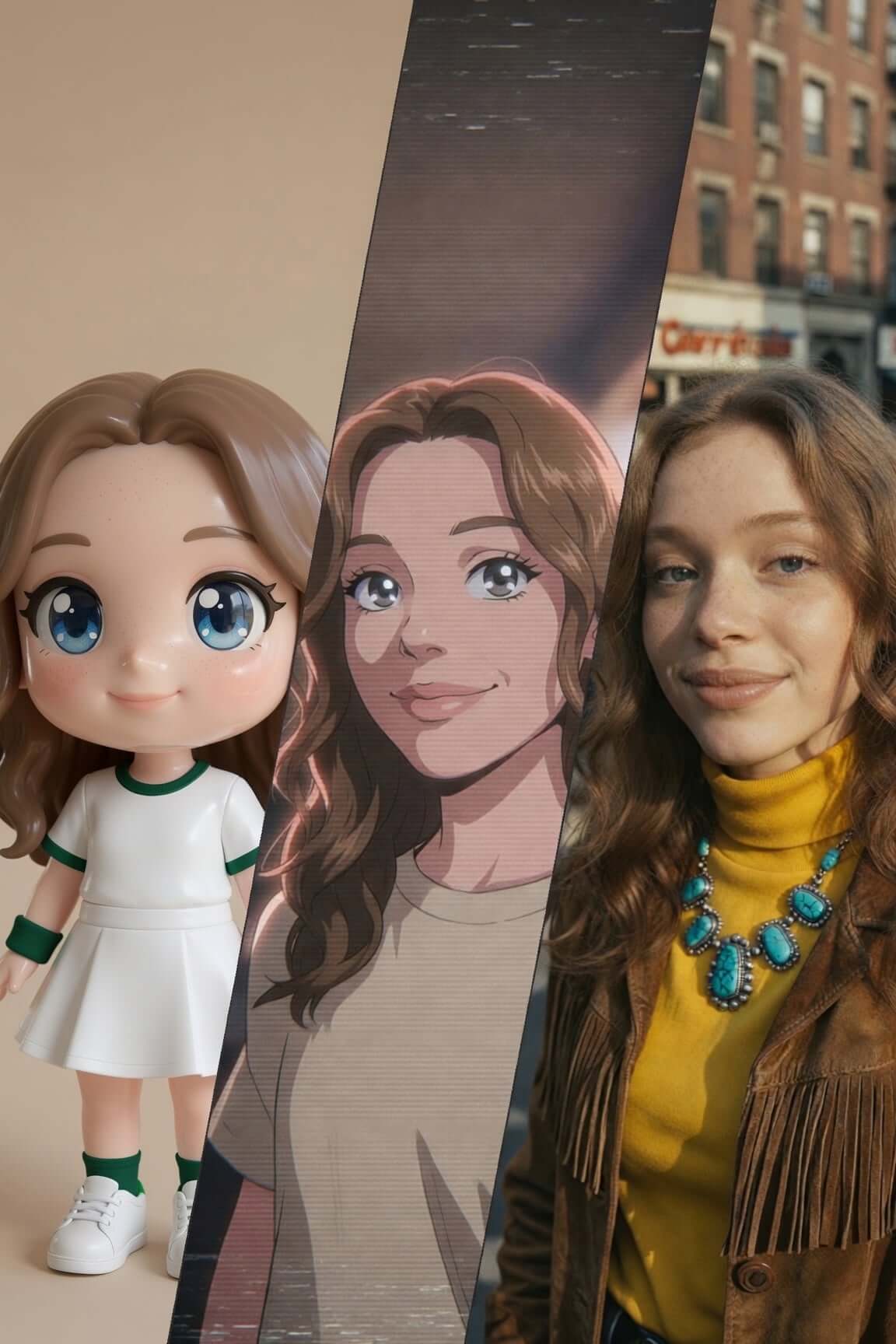
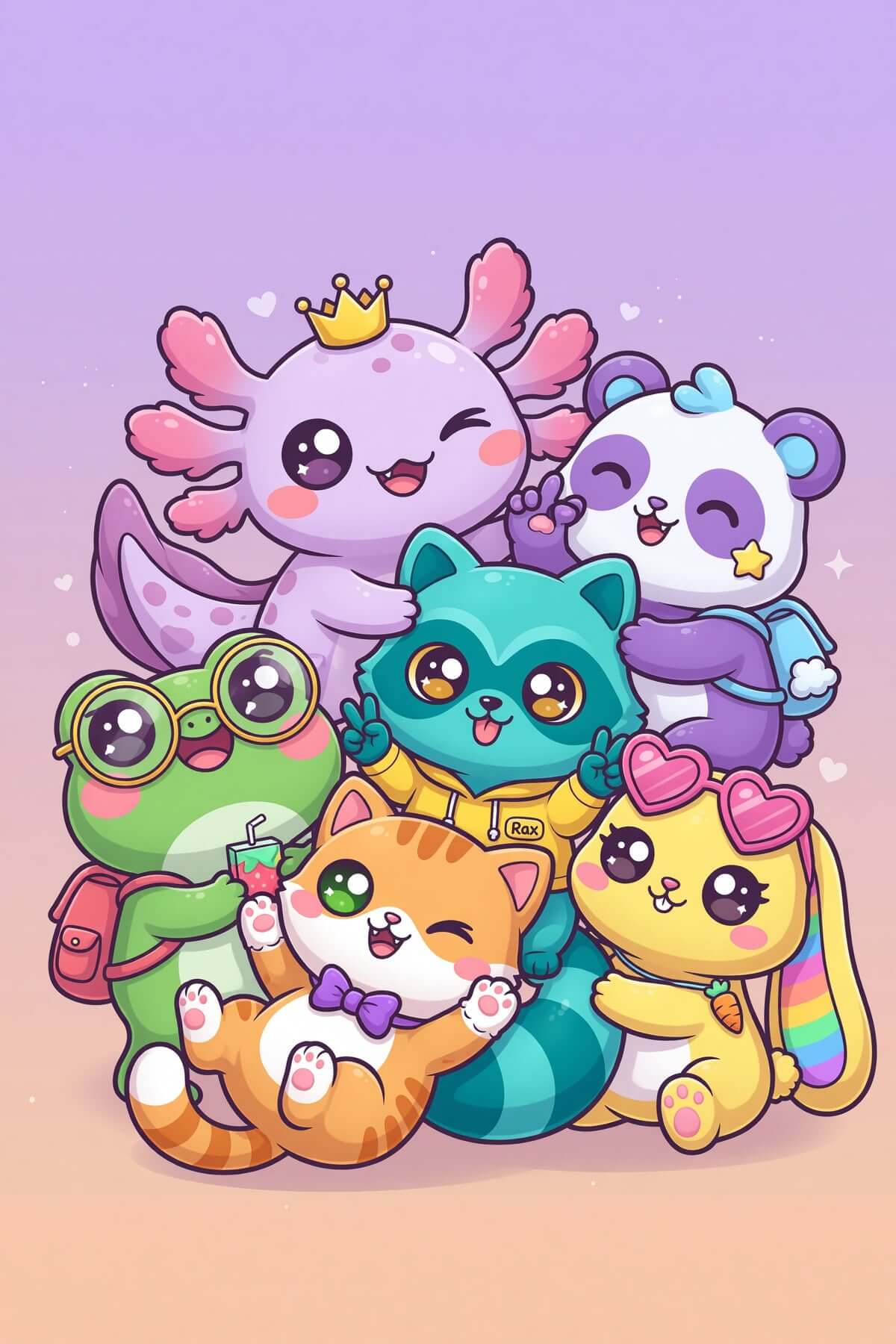
Mascot Maker template cover
BG Removal & Change template cover
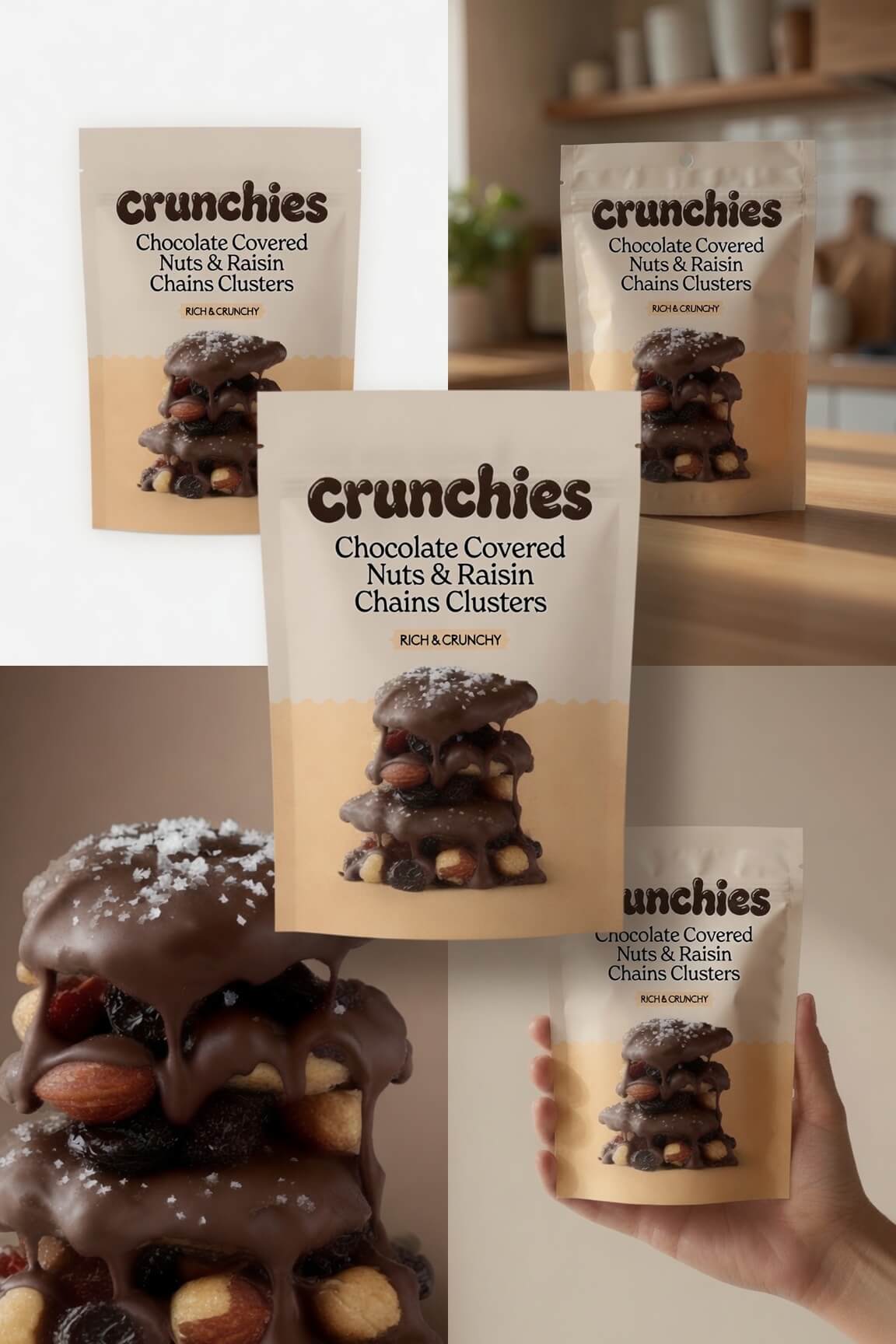
E-Commerce Photos template cover
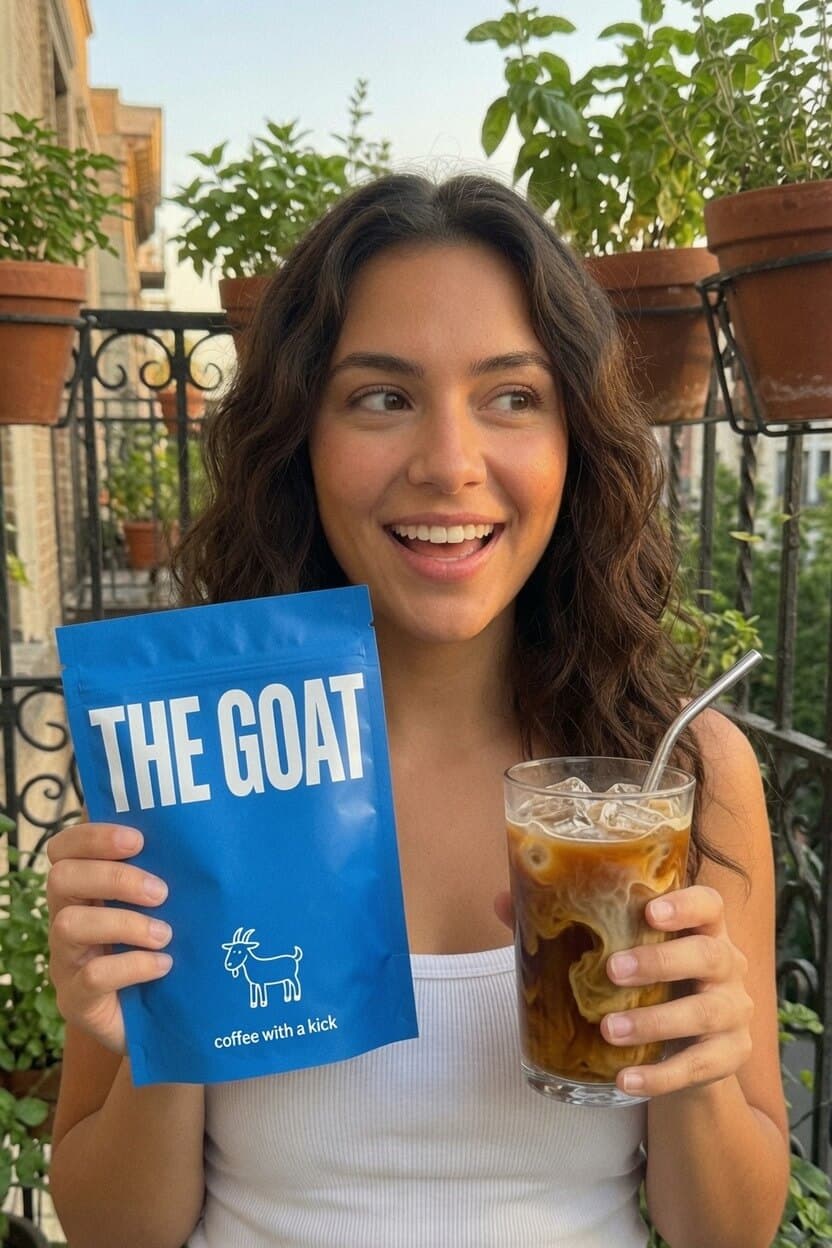
UGC Photos template cover
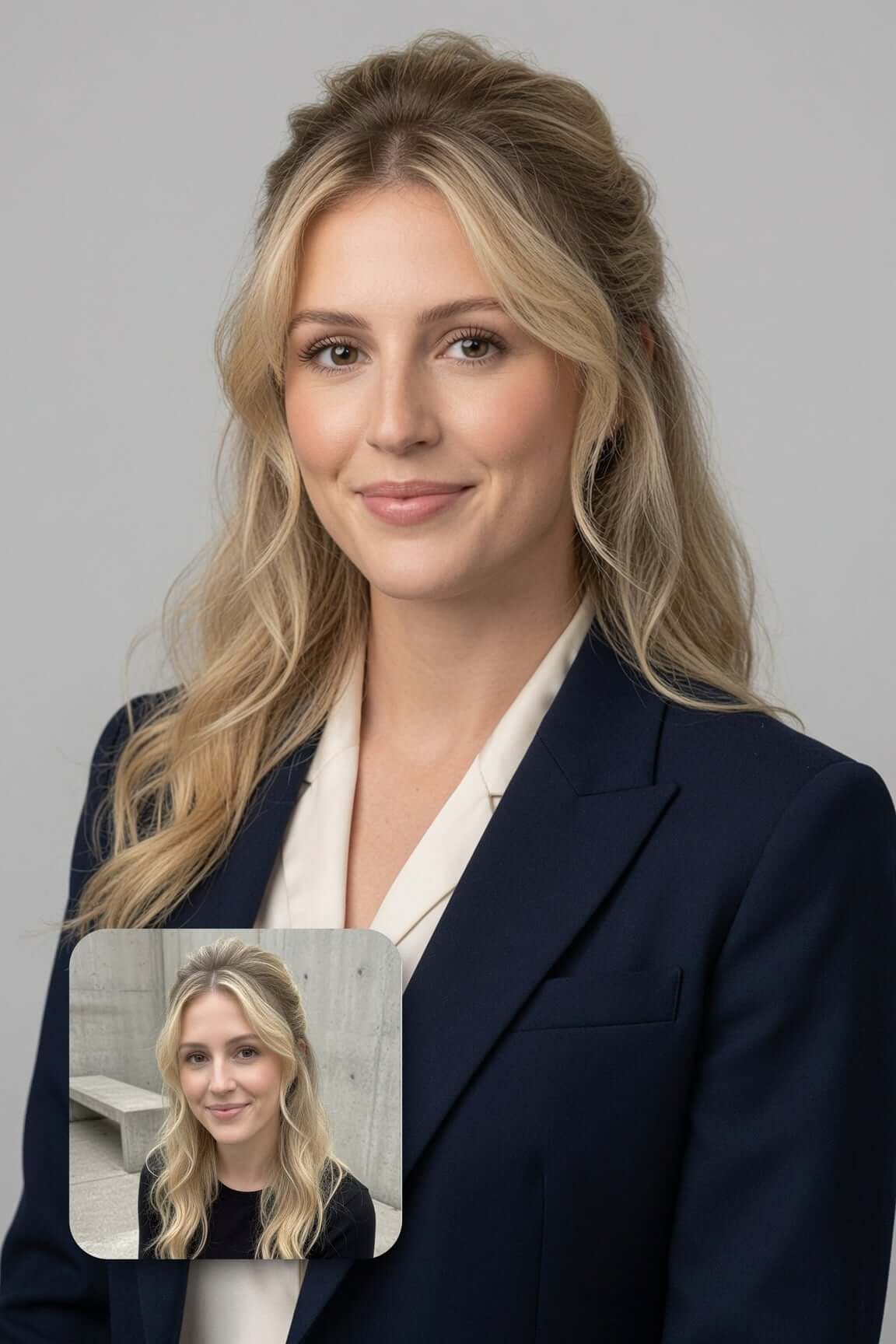
Professional Headshot template cover
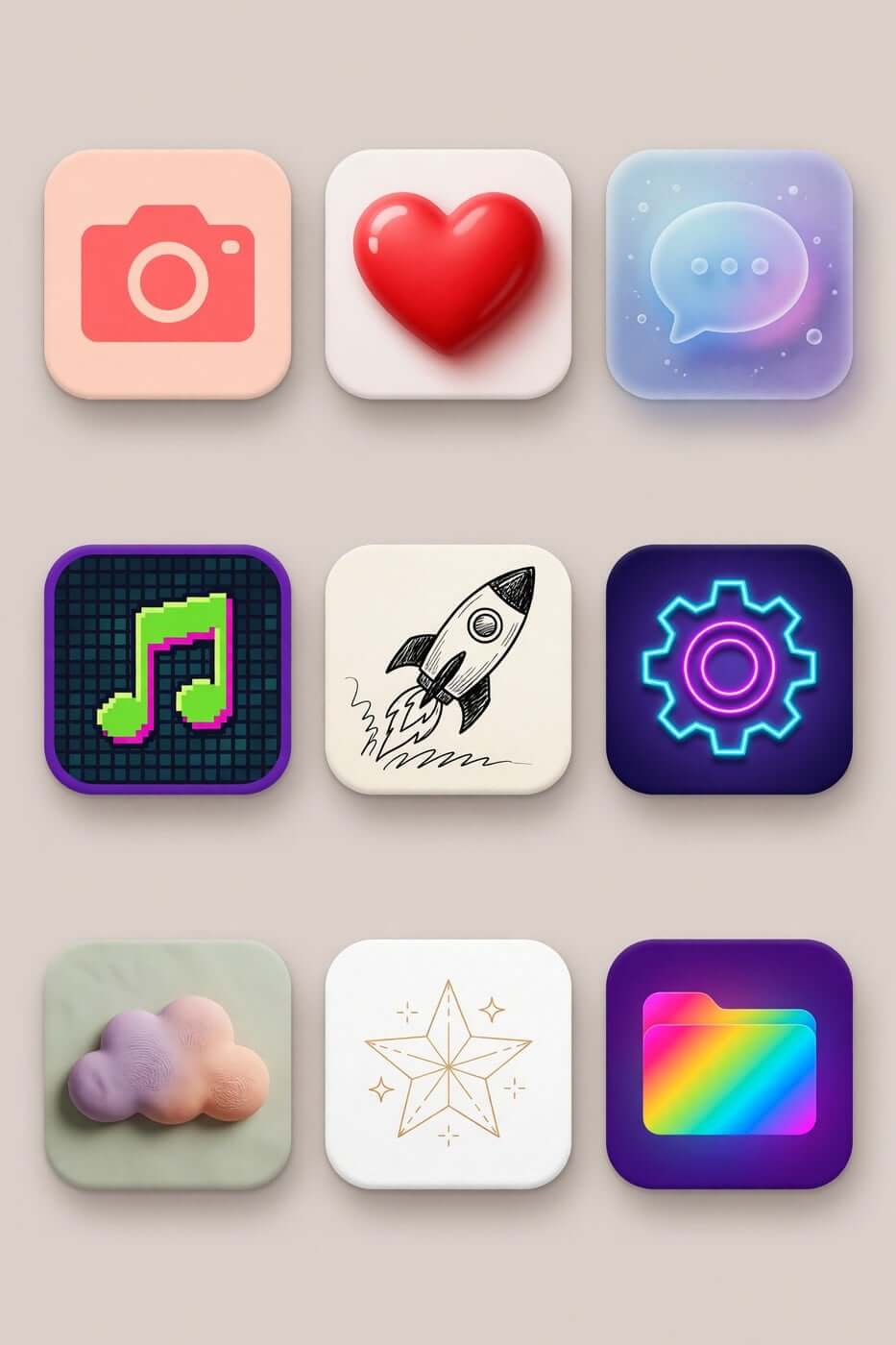
Icon Maker template cover
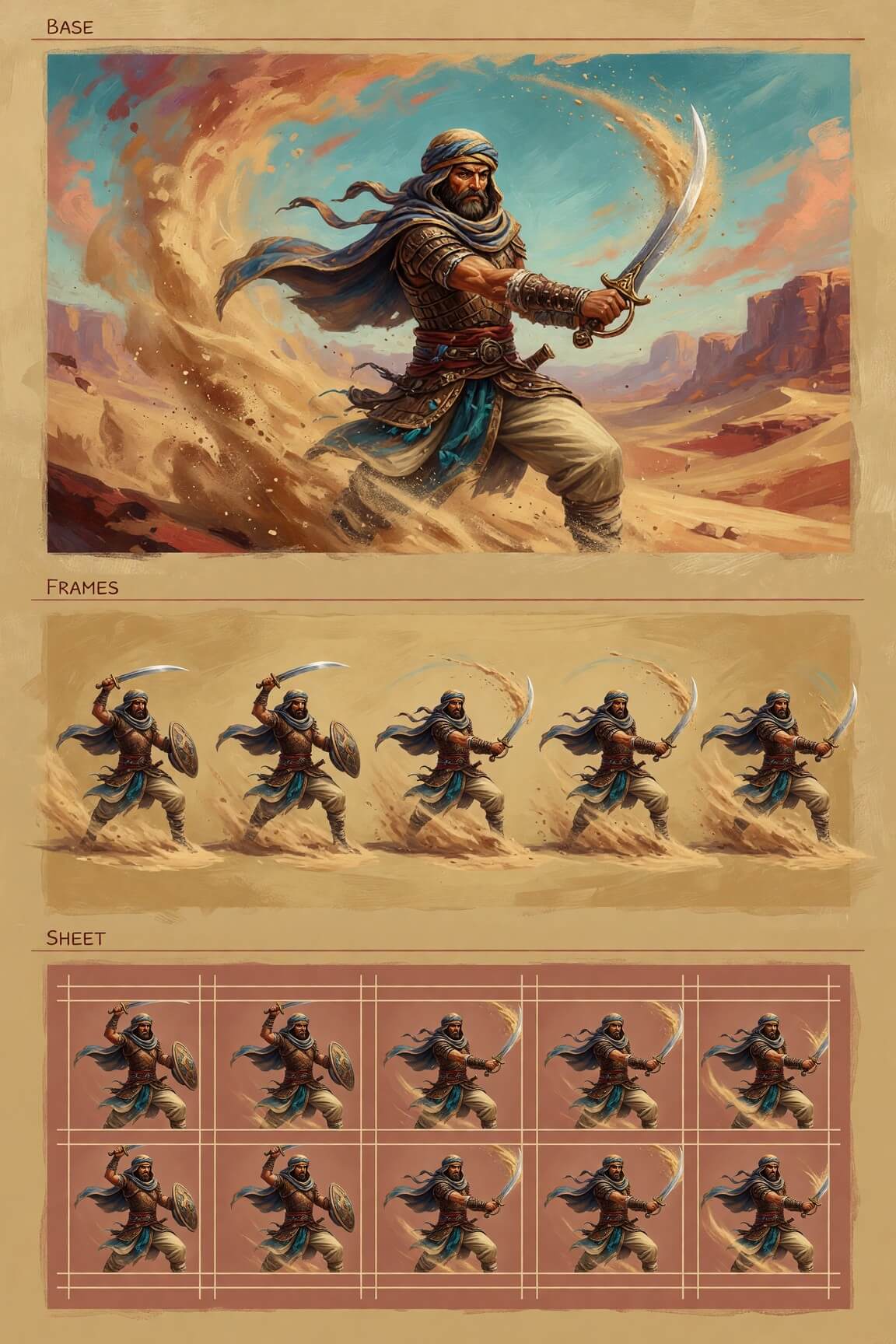
Character Sprite template cover
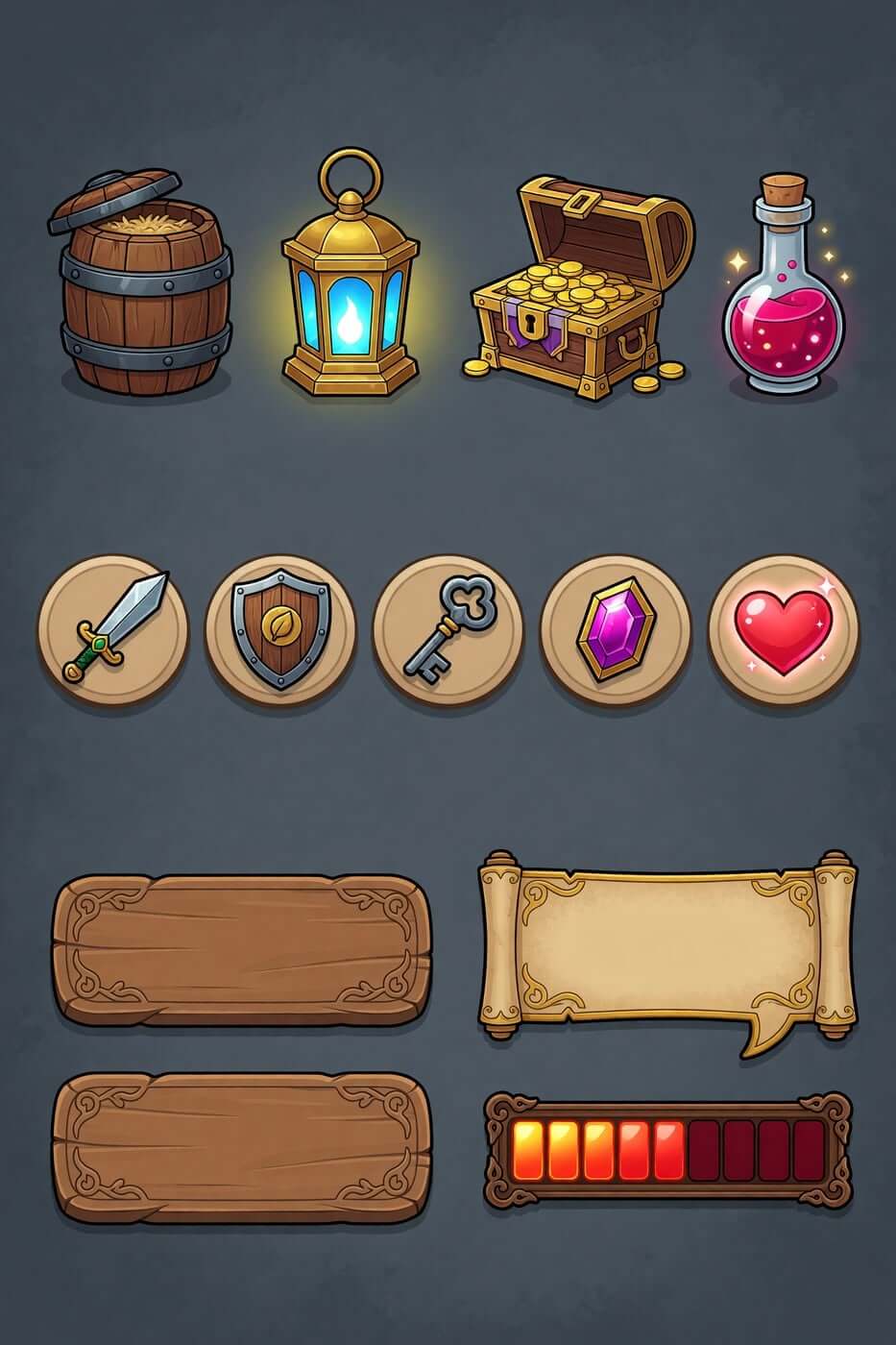
Props & UI Kit template cover
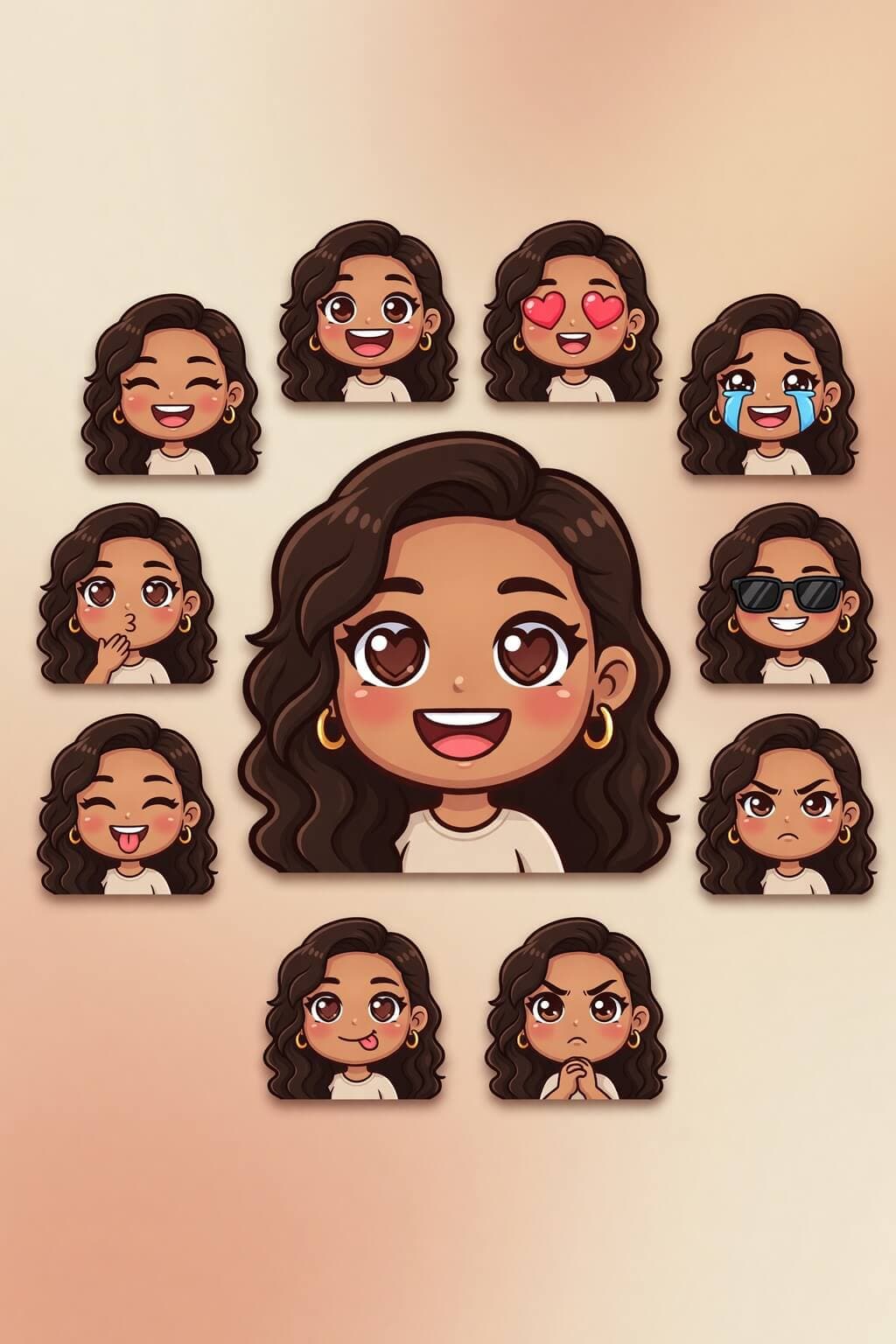
Emoji Creator template cover
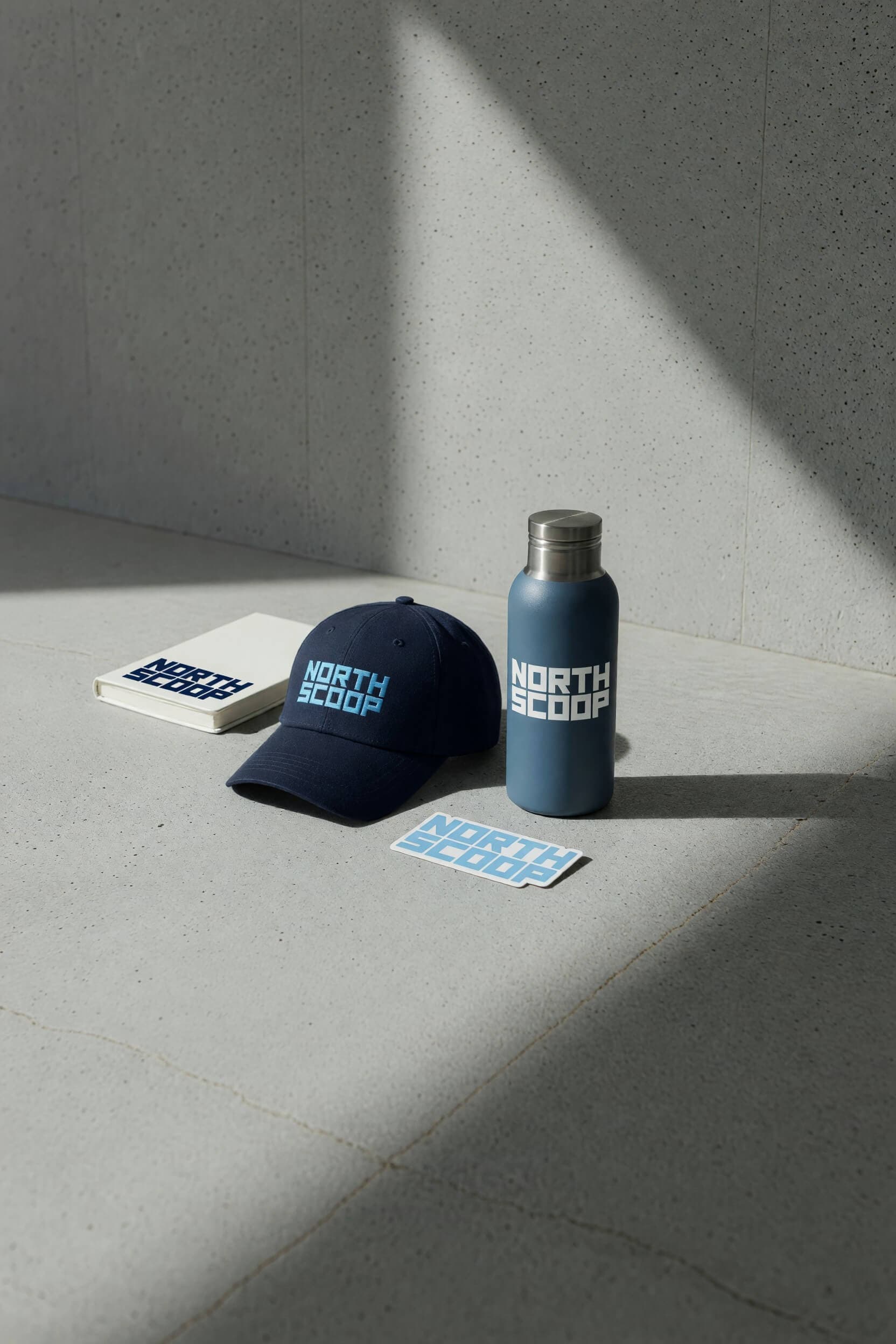
Merch Maker template cover

Workflow

How to Use Grok Image 2.0

Start with a prompt or a reference image, then improve the result through short, focused revisions in four clear steps.

01

Choose your starting point

Begin with a written concept when you need a new scene. Upload or select a reference image when you want to preserve an existing subject, composition, product, or style cue.

02

Write a specific visual prompt

Describe the subject, action, environment, framing, lighting, palette, and intended format. Put essential details before decorative ones and avoid conflicting instructions.

03

Set the aspect ratio and resolution

Match the canvas to where the image will appear. Choose the supported resolution you need, up to 2K, and request several outputs when comparing creative directions.

04

Edit the strongest result

Pick the image that best matches your core idea. Ask for one clear revision, review what changed, and continue if needed. Save only after checking details, text, and brand accuracy.

Use cases

Built around the work already on your list

Product teams exploring visual concepts

Turn a sketch, render, or written description into several polished directions. Compare materials, environments, lighting, and composition before choosing what to develop further.

Marketers building campaign assets

Create product scenes, social images, hero concepts, icons, and ad variations from a shared visual brief, carrying reference imagery through generation and editing.

Designers comparing art directions

Use image-to-image editing and style transfer to test treatments around one composition, from realistic photography to illustration or watercolor.

Creators turning ideas into shareable images

Build a new visual from a prompt, then use conversational edits to improve the details without learning a long sequence of editing tools first.

Comparison

Grok Image 2.0 compared with other workflows

NeedGrok Image 2.0Standalone Image EditorManual Production
Start from a written briefGenerates a new visual from a text promptUsually begins with an existing canvas or assetRequires photography, illustration, or design work
Use visual referencesAccepts image input, including multi-image editing workflowsPlaces or edits imported referencesUses references during the production process
Revise with plain languageSupports prompt-based image edits and multi-turn refinementUses direct editing controls and tool-specific workflowsChanges are recreated by the producer
Explore visual stylesRestyles an image from a written instructionApplies manual adjustments, filters, or generative toolsRequires a new treatment or production pass
Finish exact brand detailsRequires careful review and may need follow-up workGives direct control over fine adjustmentsOffers deliberate control but takes production time

Choose Grok Image 2.0 when speed of exploration and prompt-based revision matter. Use a dedicated editor or manual production step when exact typography, measurements, legal approvals, or pixel-level control are essential.

Why choose

Why Choose Grok Image 2.0?

One conversation from draft to revision

Keep the brief and follow-up edits in the same thread. Point to the current image and describe what should be different next.

Flexible inputs for different starting points

Use text when the idea exists only in words, a reference image when the subject already exists, or multiple images when you need separate cues for people, objects, setting, or style.

Output choices for real layouts

Set an aspect ratio that fits the placement and select output up to 2K for a square tile, vertical post, or wide page section.
A clear path into motion

Once you have an approved still, explore a related Grok Imagine video workflow without moving the idea into an unrelated product family.

FAQ

Grok Image 2.0 questions, answered

How do I use Grok Image 2.0?

Open Grok Imagine, enter a visual prompt or add a reference photo, and generate an image. Then ask Grok Image 2.0 to edit the strongest result with a focused follow-up instruction.
Can Grok Image 2.0 generate images from text prompts?

Yes. Grok Image 2.0 supports text-to-image generation, so you can describe a subject, scene, lighting, composition, and style in writing and receive a generated visual.

Can I edit images with natural language?

Yes. You can provide a source image and describe the change you want in plain language. Multi-turn editing allows one revised image to become the starting point for the next change.

Can Grok Image 2.0 use multiple reference images?

Yes. The supported multi-image editing workflow accepts at least two source images and uses your prompt to describe how their subjects or visual cues should be combined.

What resolution does Grok Image 2.0 support?

Grok Imagine image workflows support output up to 2K. Available choices can depend on the model, interface, and account context.

Can I choose an aspect ratio?

Yes. Choose the destination first so Grok Image 2.0 can frame the subject for a wide banner, square tile, portrait post, or another supported layout.

Does Grok Image 2.0 add a watermark?

Generated images and videos in Grok include a Grok watermark that identifies AI-created content. Grok does not provide a setting to remove it.

Is Grok Image 2.0 free?

Grok is free to try, but usage limits apply. Paid SuperGrok plans raise those limits, and API image generation is billed separately according to the selected model and output.

Is Grok Image 2.0 the same as Grok's video generator?

No. Grok Image 2.0 focuses on image creation and editing, while Grok Imagine also provides separate video generation and editing workflows.

What should I check before publishing an AI-generated image?

Check people, hands, objects, perspective, spelling, logos, packaging, and factual details. Also confirm that you have the rights and approvals required for every reference image and intended use.

Start Creating With Grok Image 2.0

Move from a written idea or reference photo to a visual you can review and refine. Try Grok Imagine Image 2.0, compare several directions, and keep editing until the image matches your brief.

Try Grok Image 2.0